
Follow up and close a deviation
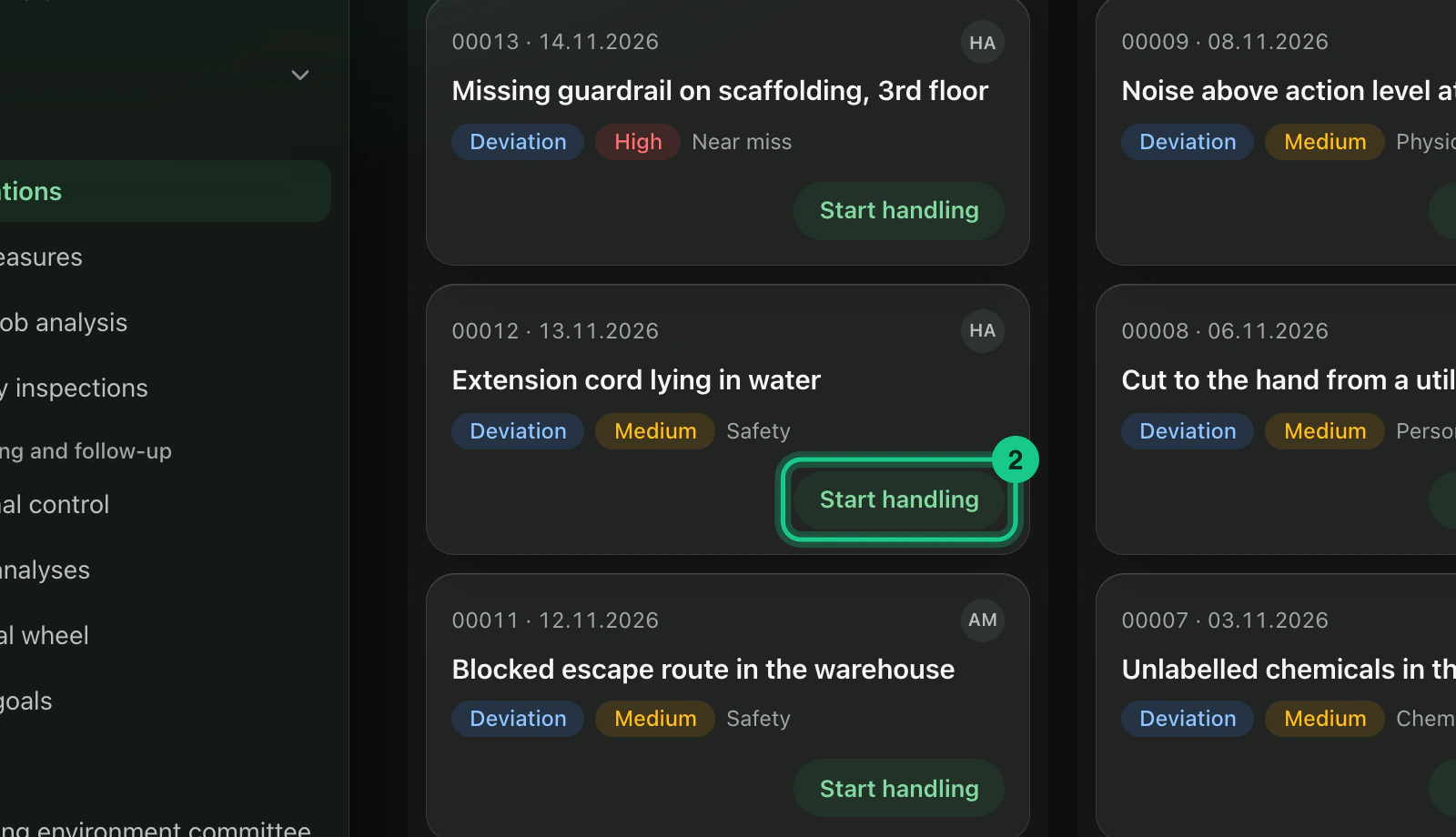
The deviation board has three columns: New, In progress and Done. You move a deviation on by dragging it, or with the buttons “Start handling” and “Close deviation”.
- Applies to: Manager
- Applies to: Administrator
- Requires HSE
- Requires edit rights on Deviation handling
In the portal: HSE > Deviations
Before you start
You must have edit rights on “Deviation handling”. By default administrators, team leaders, managing directors and safety representatives have them. Others see the cards, but without buttons.
How to do it
Go to HSE > Deviations. The board shows “New”, “In progress” and “Done”.
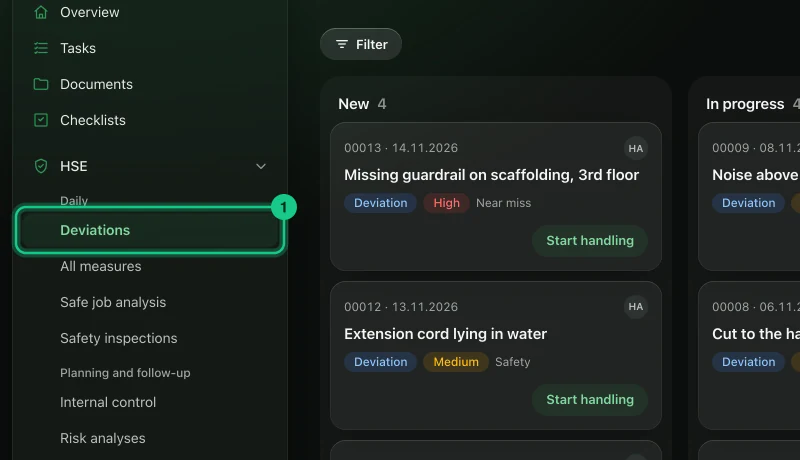
Select “Start handling” on a card in “New”, or drag the card to “In progress”.

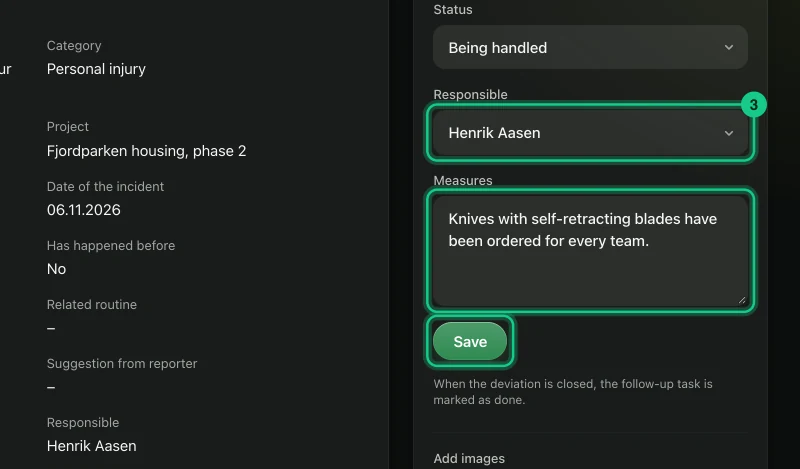
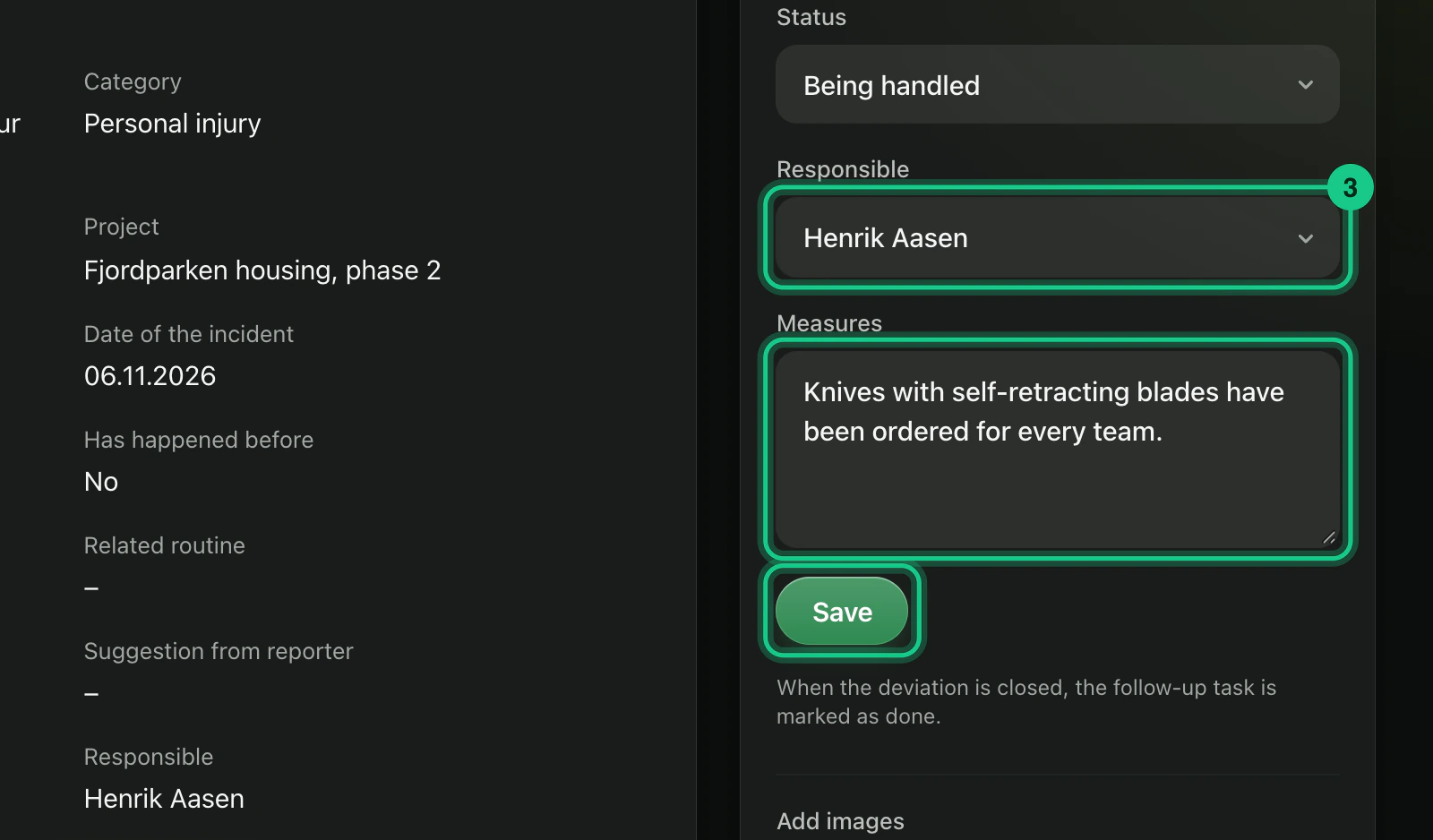
Open the deviation to see the details. Under “Handling” you set “Responsible”, write in “Measures” and select “Save”.
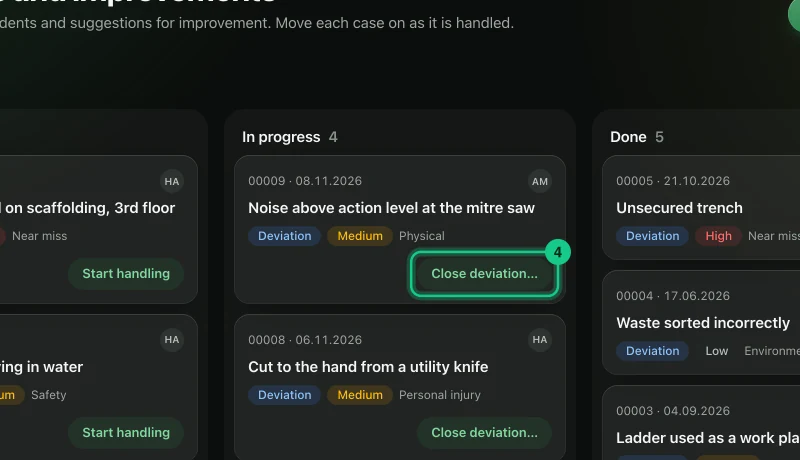
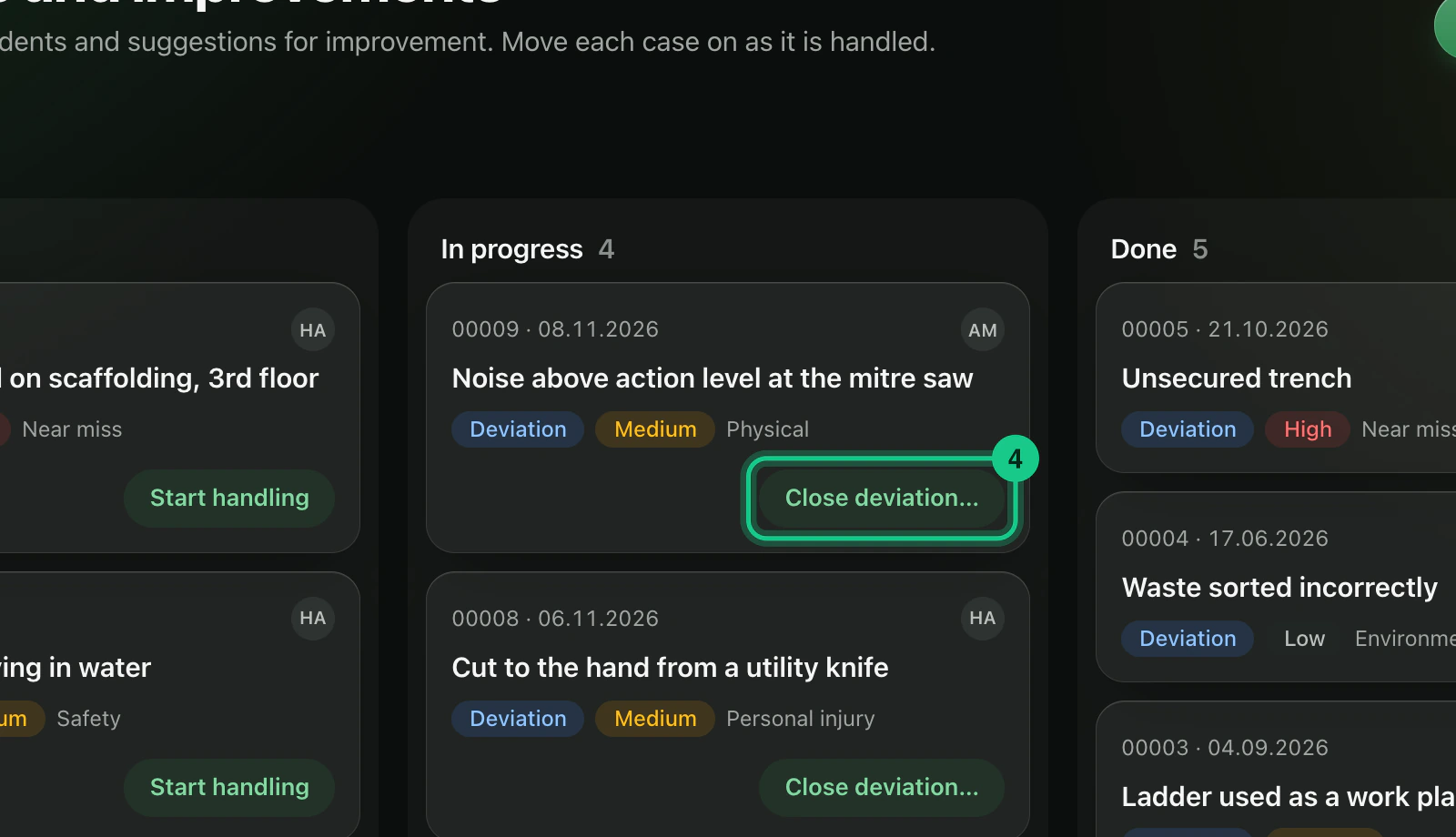
When the measure is done: select “Close deviation…” on the card in “In progress”.
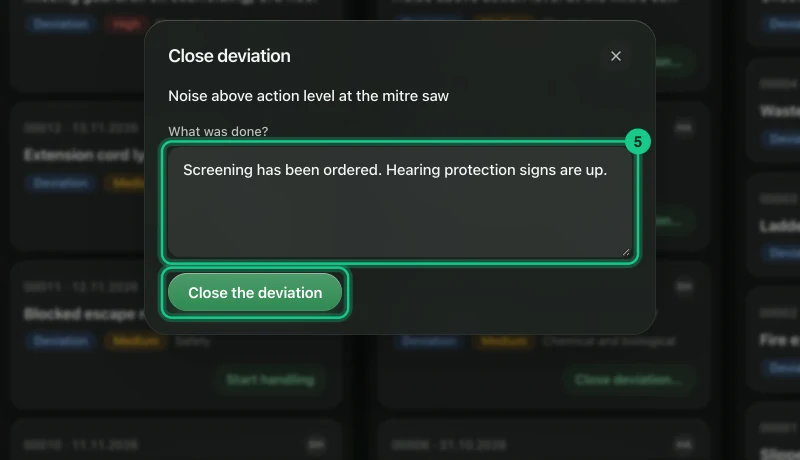
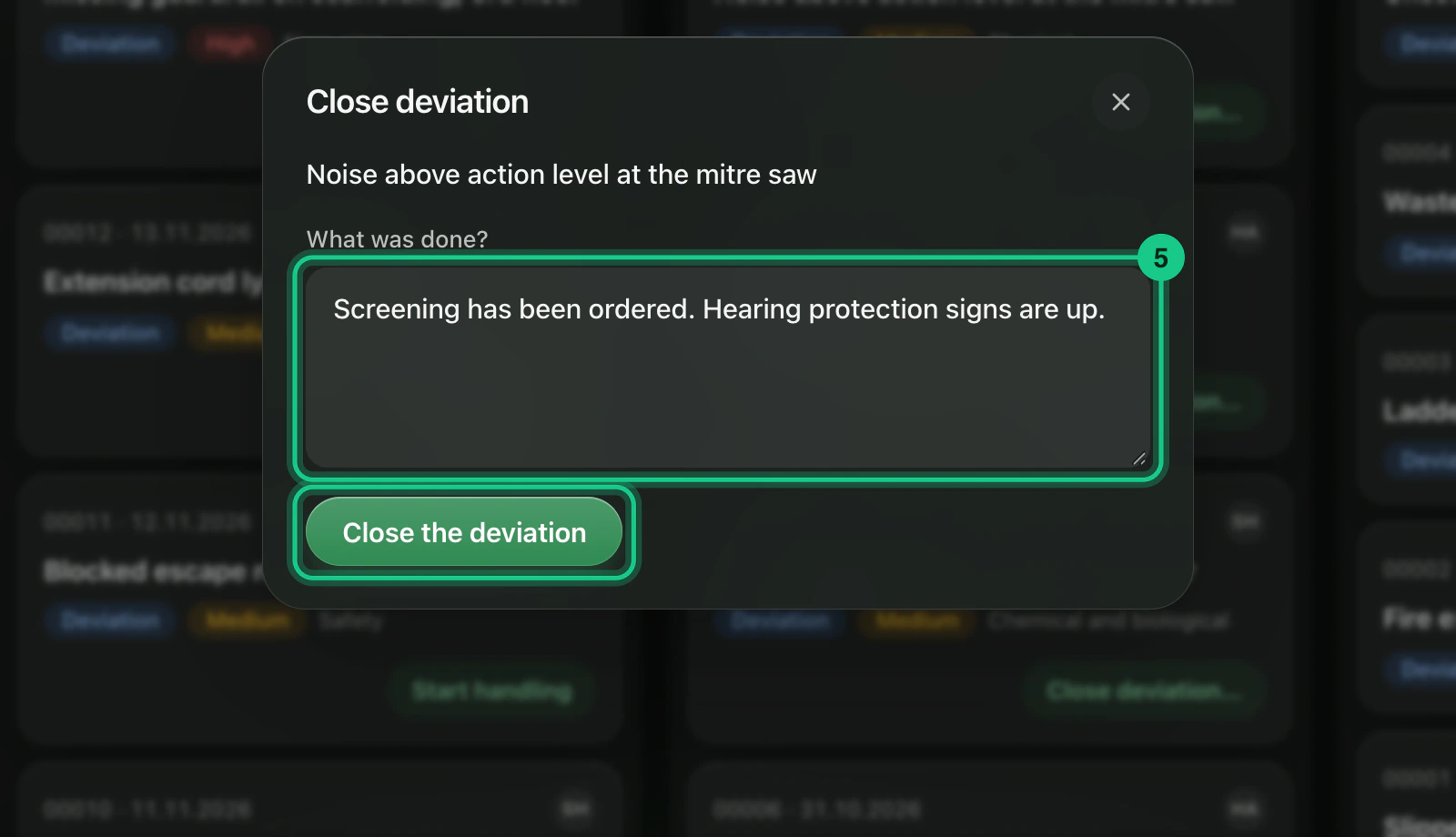
Write what was done in “What was done?”, and select “Close the deviation”. For high severity you must write this.

What happens next?
The reporter gets a notification every time the status changes. When the deviation is closed, the follow-up task is set to “Done”. You can write to the reporter under “Conversation with reporter”, and fill in “Learning” with what prevents it from happening again. A closed deviation can be locked with “Lock the deviation”. Then only an administrator can unlock it.
Common problems
- The responsible person was changed, but nobody was told. The follow-up task does not follow along. Create or move the task under Tasks.
- A deviation is not moved back with a button. Drag the card to the column. A task that has been set to “Done” is not reopened.
- The card is gone. Deviations are not deleted. An archived deviation can be restored from Company > Archive.