
Take a course and get a course certificate
You watch the videos in order, answer control questions and take a final test. When you have passed, you get a course certificate you can print or save as a PDF.
- Applies to: Employee
- Requires Courses
- Requires an employee record linked to your login
In the portal: Courses > My courses
Before you start
You must be enrolled in the course and have an employee record linked to your login.
How to do it
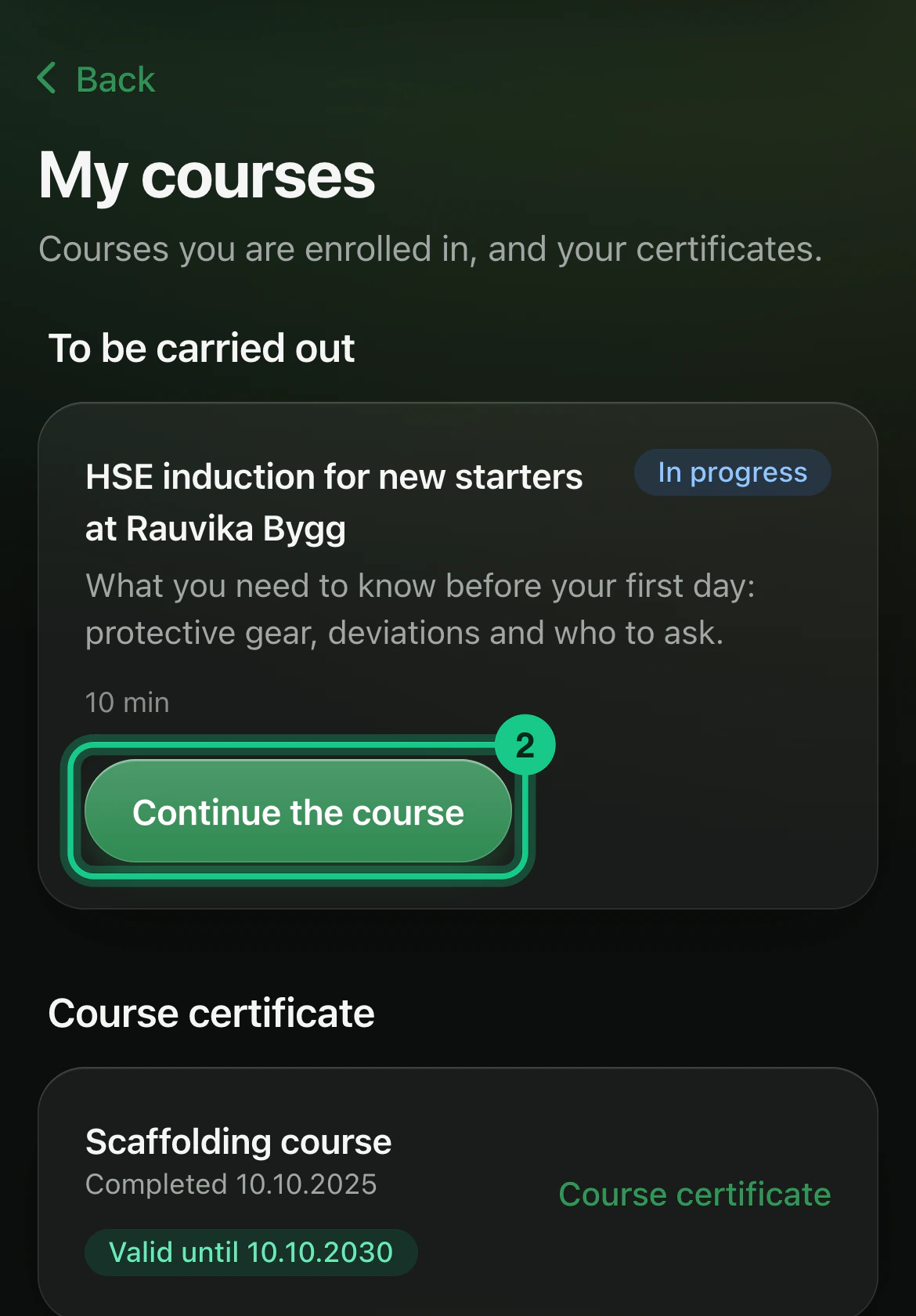
Go to Courses > My courses. Your courses are under “To be carried out”.
Select “Start the course”, or “Continue the course” if you have already begun.

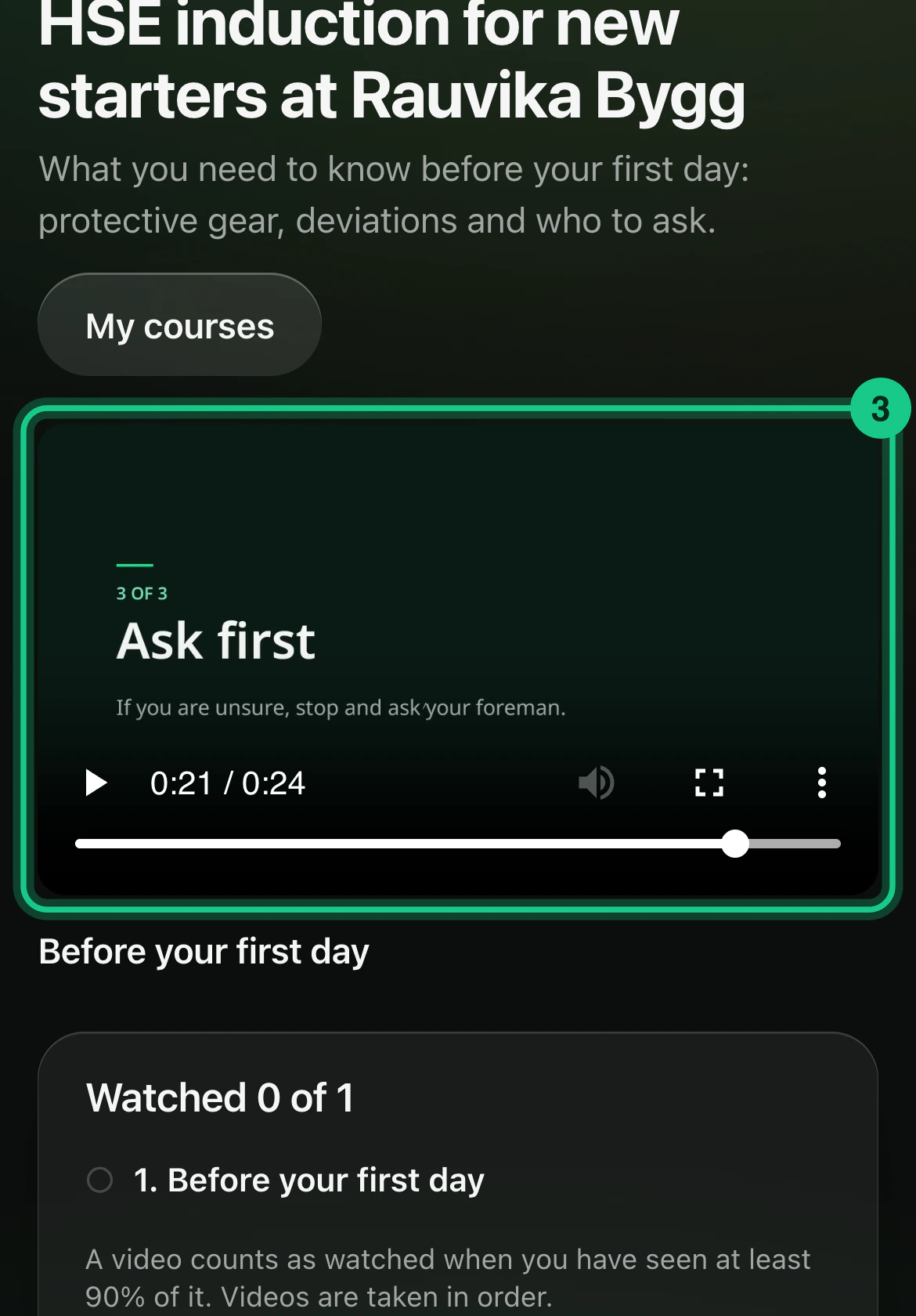
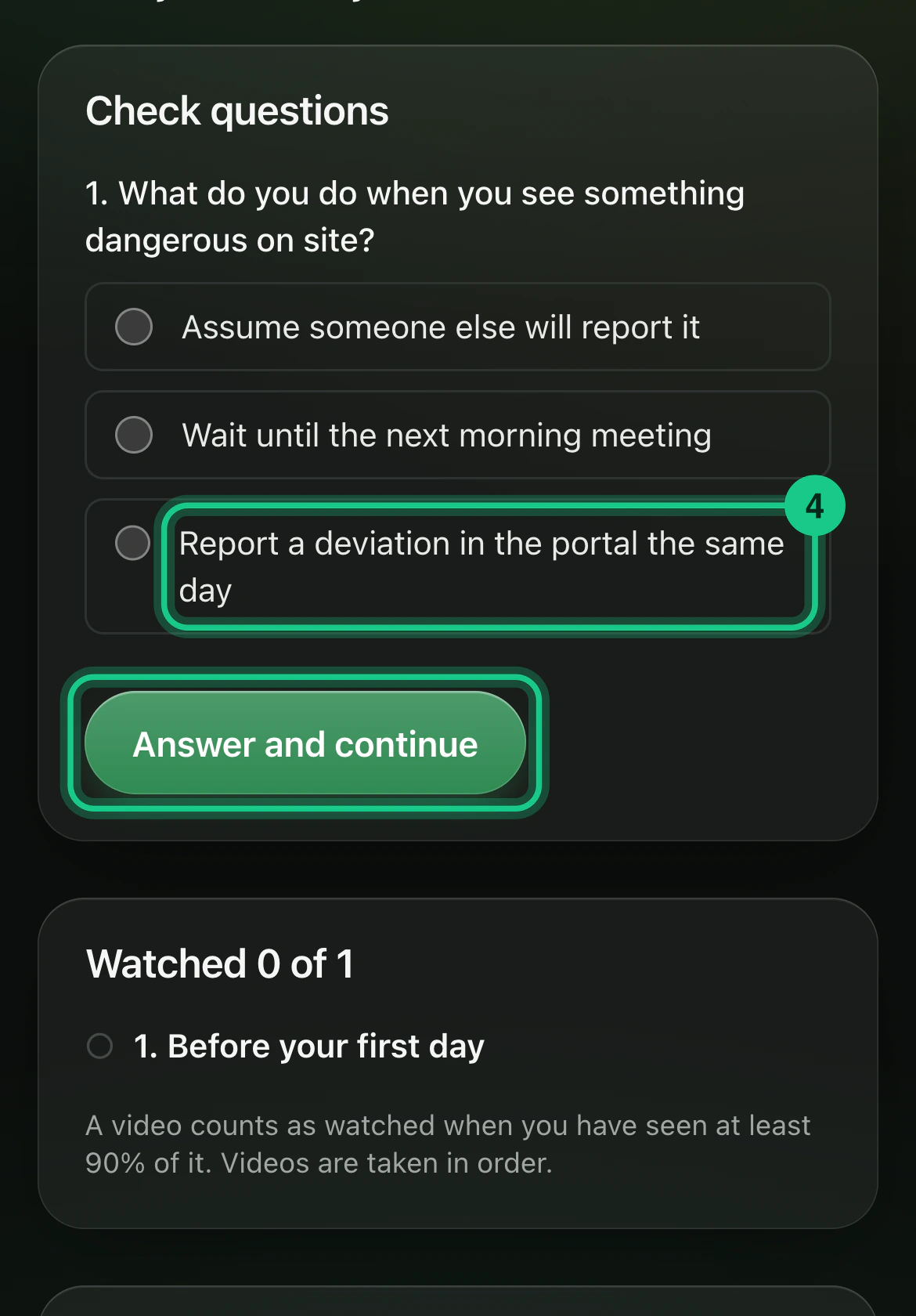
Watch the videos in order. A video counts as watched when you have seen at least 90 percent of it.
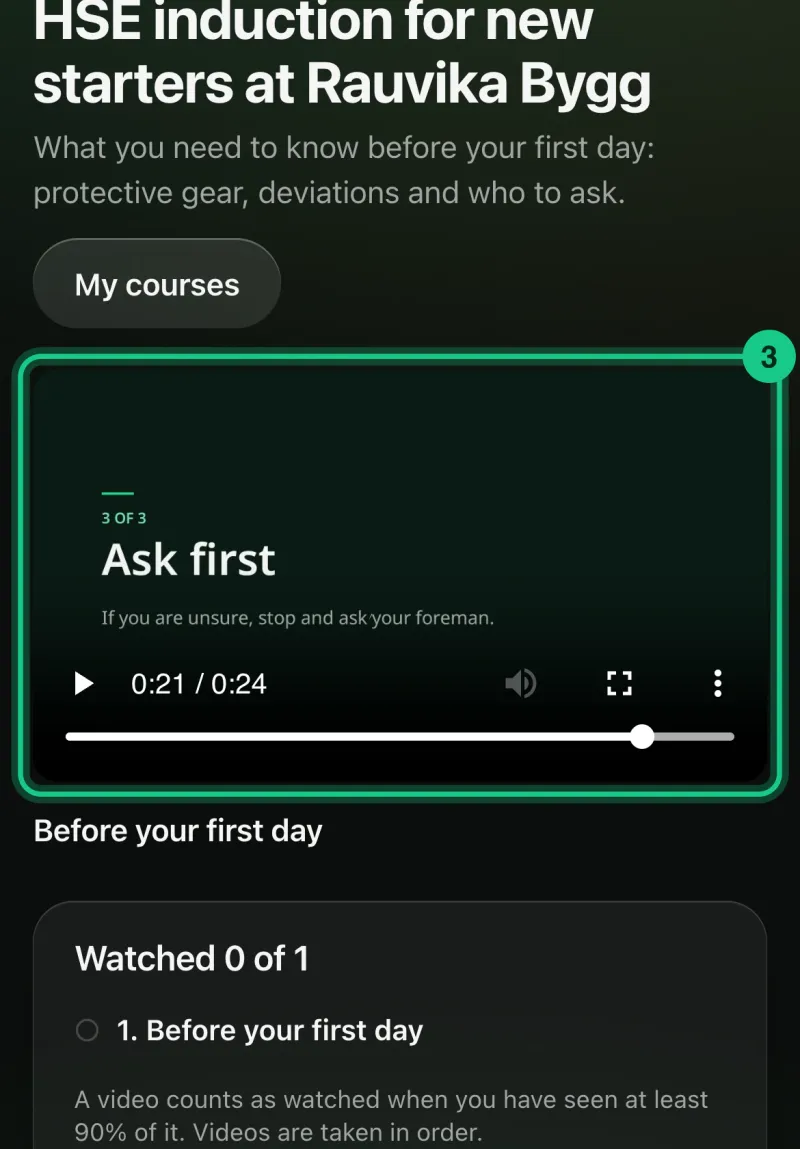
Answer the control questions and select “Answer and continue”. All answers must be right, and you can try again.

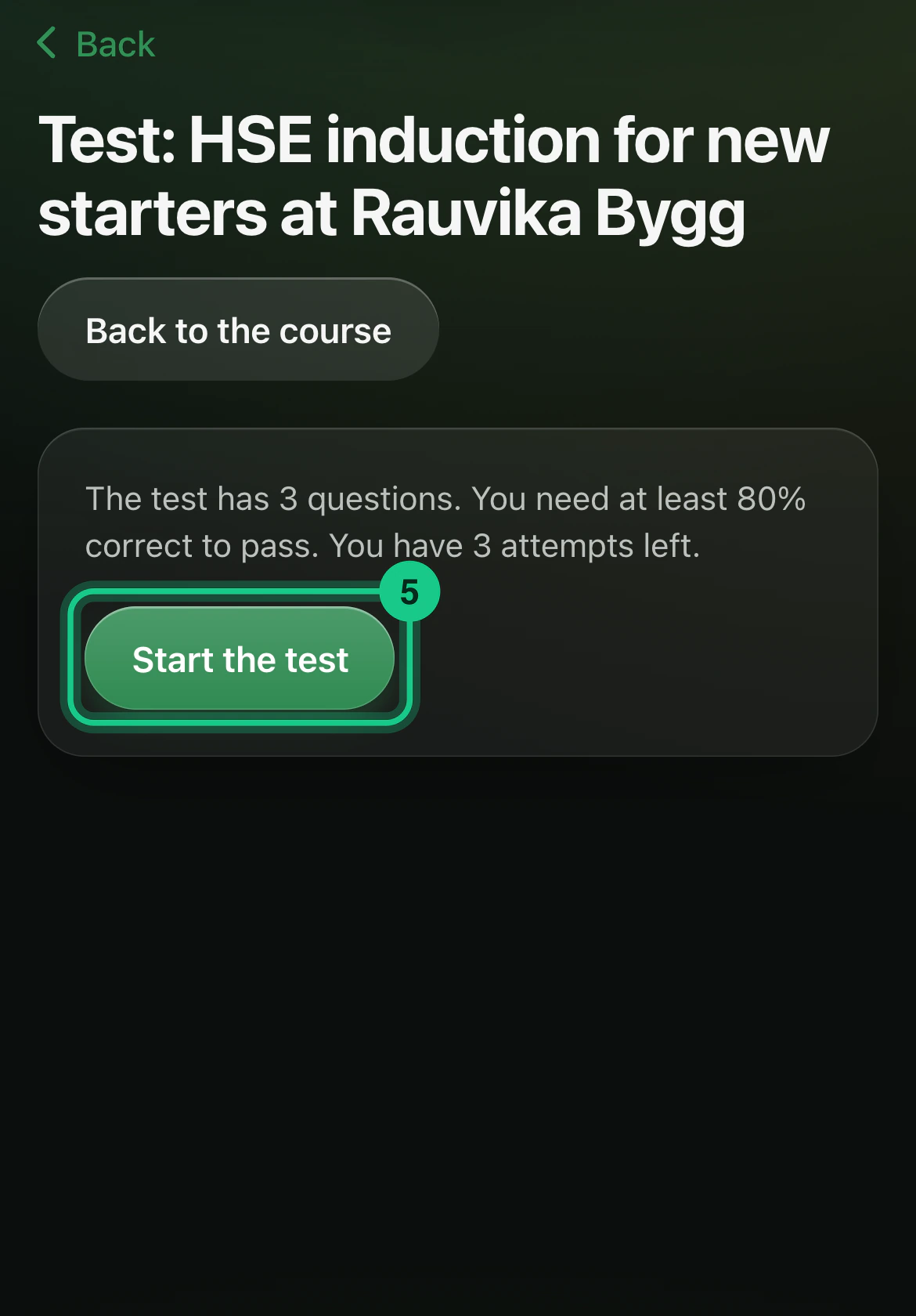
When everything is done, the “Final test” opens. Select “Start the test” and “Submit the test”. By default you need at least 80 percent correct, and you have 3 attempts. The requirement may be set differently for a particular course.
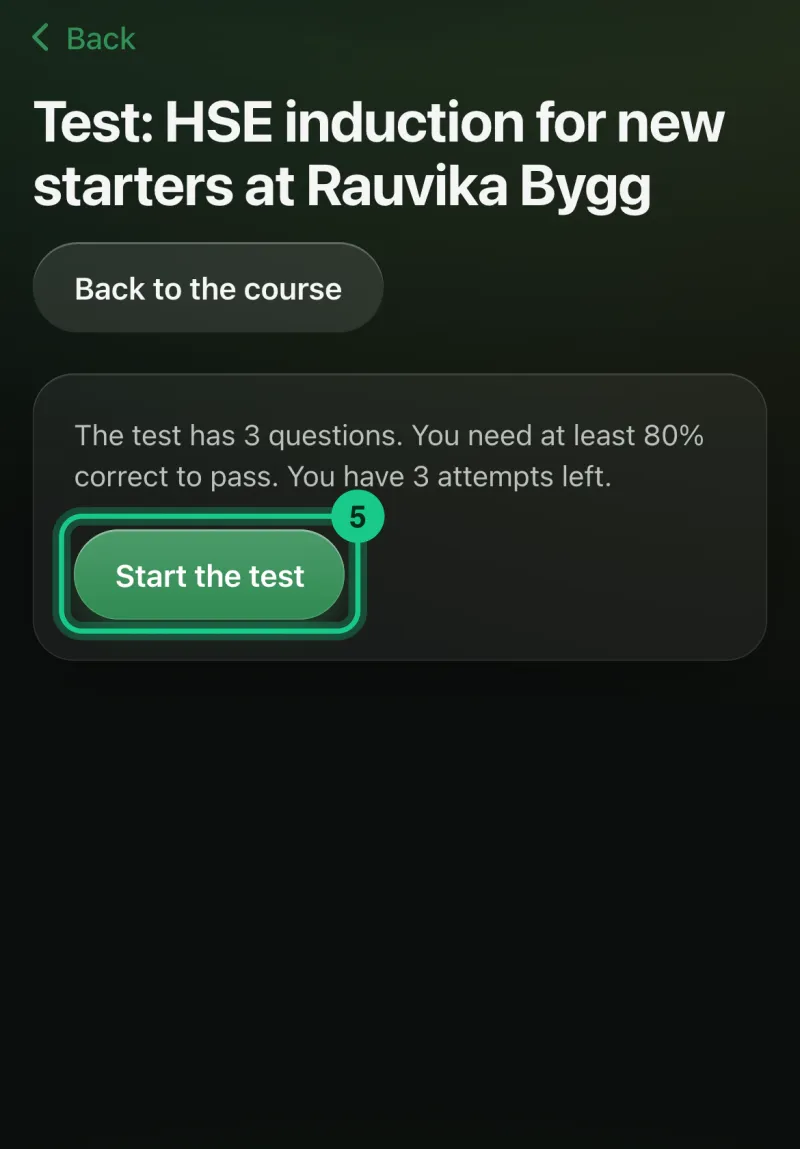
After you have passed, the course shows as “Completed”, and the certificate is under “Course certificates”.
What happens next?
The certificate shows name, course, date and “Valid until”. Select “Print / save as PDF” to save it. If the certificate is about to expire, the course shows “Expires” with a date, and an administrator can send you a reminder to retake the course.
Common problems
- You have used up your attempts. You are told to contact your manager for new attempts. An administrator gets a notification and can set the course to “In progress”.
- The video does not play. See “The course video does not play”.
- The course has no content in the portal. Then your manager registers it as completed once it has been done.