
Enter hours and submit for approval
You register your hours under HR > Timesheet, submit them, and an administrator approves or rejects them.
- Applies to: Employee
- Applies to: Administrator
- Requires HR
- Requires an employee record linked to your login
In the portal: HR > Timesheet
Before you start
Your user must be linked to an employee record. You only see your own hours. Administrators see everyone’s.
How to do it
Go to HR > Timesheet and select the “Register hours” button. It opens the form.

Choose “Date”, “From”, “To” and “Break (min)”. Type “Of which overtime (min)” if there is overtime. Choose a “Project” if you want to, and write a “Comment”.
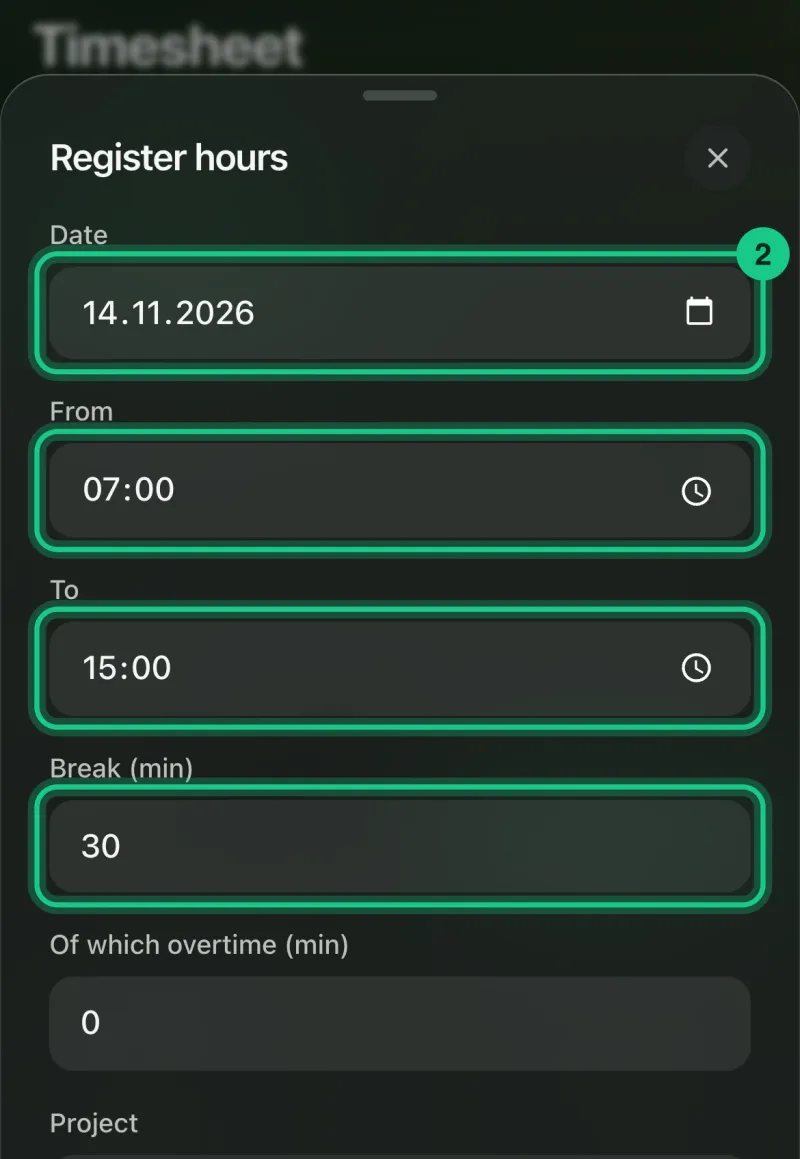
Select “Add”. The entry gets the status “registered”.

When you are done, select “Submit entries”, with the number after it. All your entries with the status “registered” or “rejected” are submitted.
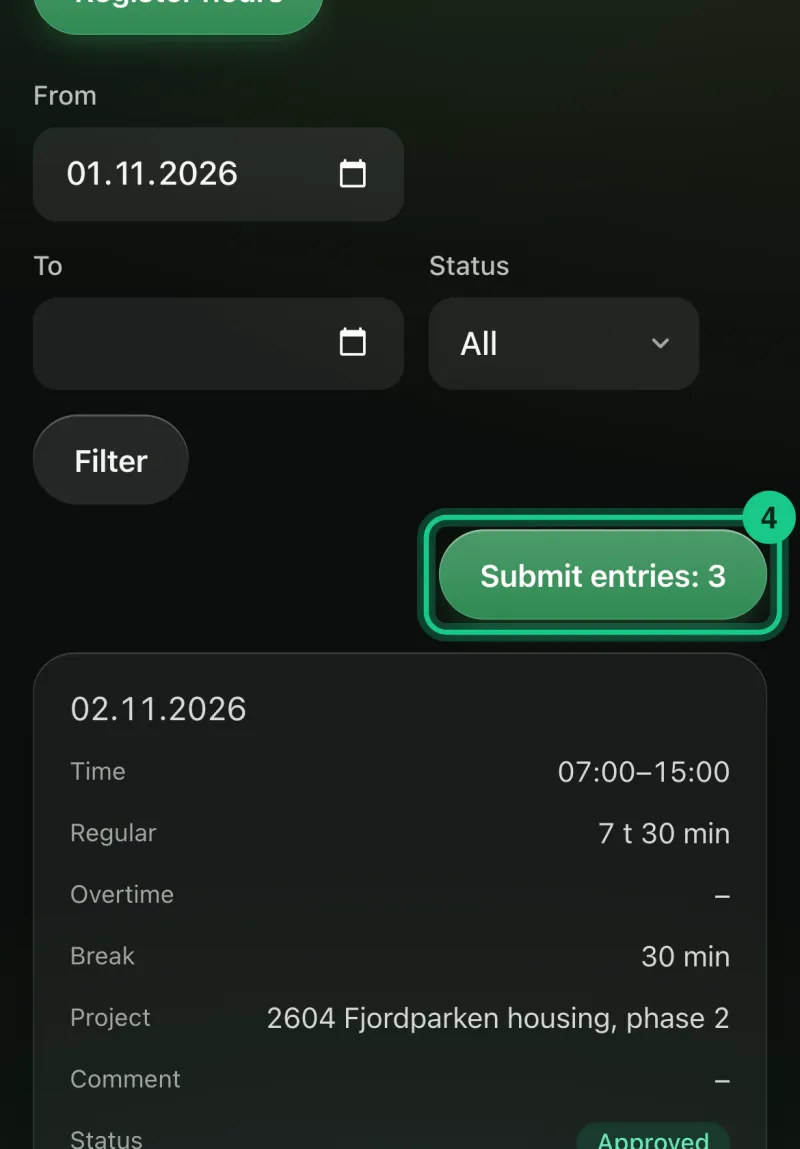


What happens next?
Administrators get a notification that hours have been submitted. They approve or reject. You get a notification: “Your hours have been approved”, or “Your hours have been rejected. Correct them and submit again.” There is no field for a reason.
Common problems
- You cannot change an entry. You can edit and delete entries with the status “registered” or “rejected”. After submission they are locked.
- “Break and overtime cannot be longer than the work session.” Check the times you have entered.
- You work past midnight. If you enter an end time earlier than the start time, it is read as past midnight.