
Report sickness or apply for holiday and leave
Sickness is reported and registered immediately. Holiday and leave are applied for, and must be approved by an administrator. You do both under HR > Absence.
- Applies to: Employee
- Applies to: Manager
- Requires HR
- Requires an employee record linked to your login
In the portal: HR > Absence > “Report or apply for absence”
Before you start
Your user must be linked to an employee record. Otherwise you see: “Your user is not linked to an employee record yet. Ask an administrator to link you under Employees.”
How to do it
Go to HR > Absence and select “Report or apply for absence”.

Choose “Type”: self-certification, sick leave, sick child, holiday, leave with pay, leave without pay or other.
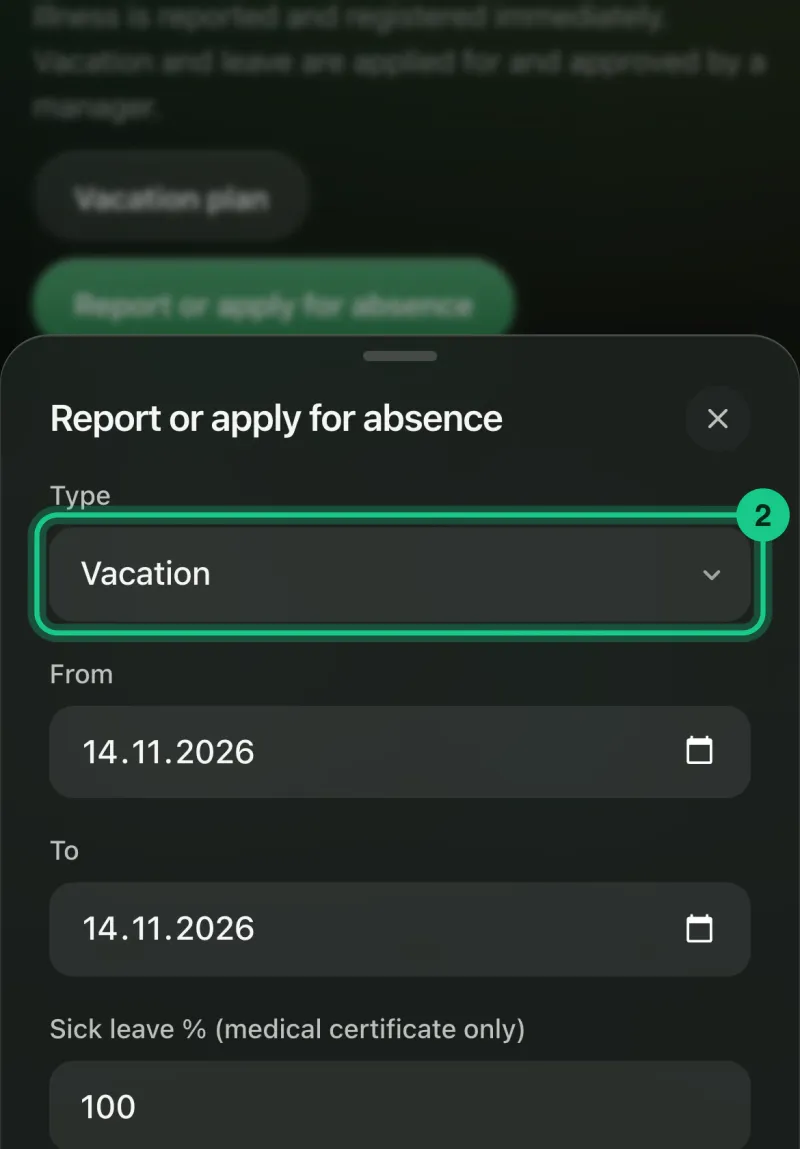
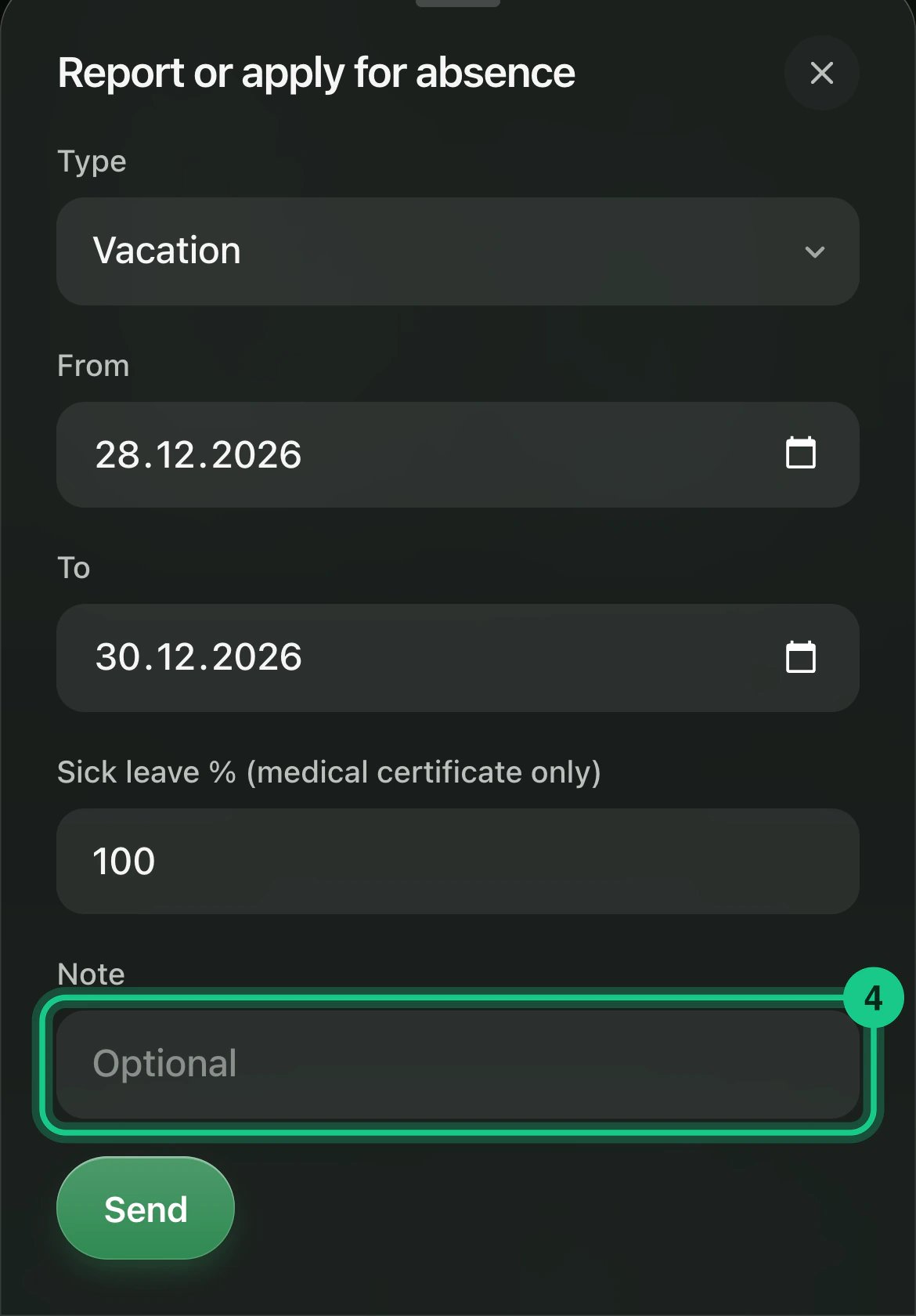
Choose “From” and “To”. For sick leave you also type the sick leave percentage.

Add a “Note” if you want to.

Select “Send”.



What happens next?
- Self-certification, sick leave and sick child are registered immediately with the status “approved”.
- Holiday, leave and other get the status “applied”. An administrator gets a task to handle the request. You get a notification when it is approved or declined, and any comment appears under “My absence”.
- While the request is “applied”, you can change it or withdraw it with “Withdraw”.
Common problems
- The self-certification is rejected. The company has rules. By default it is up to 4 self-certifications per 12 months, at most 3 calendar days at a time, and after 2 months in the job. An administrator can change the numbers. You are told what applies.
- You can register too many holiday days. The portal does not stop the registration, even if you have used up your holiday days. See your balance under HR > Vacation.