
See holiday and absence in the calendar
The calendar shows who is away when, week by week through the year. Administrators see all absence, everyone else sees approved holiday.
- Applies to: Employee
- Applies to: Manager
- Applies to: Administrator
- Requires HR
In the portal: HR > Vacation plan (employee) or HR > Absence calendar (administrator)
How to do it
Go to HR > Vacation plan. If you are an administrator, the menu item is HR > Absence calendar.

Choose the year with the buttons for last year, this year and next year.
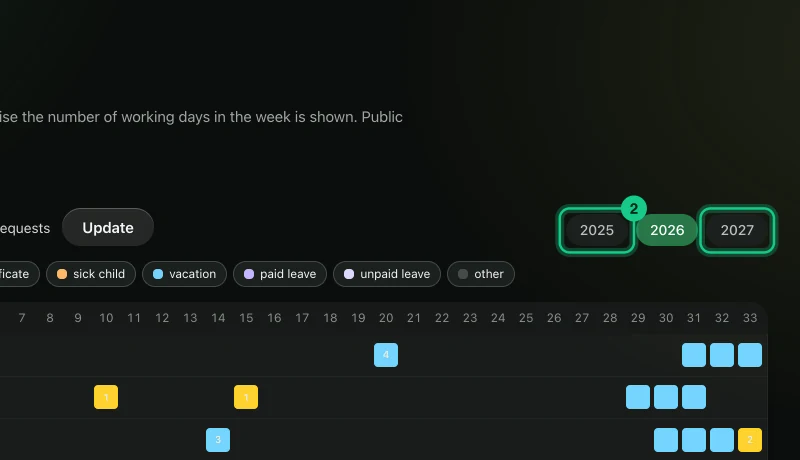
Choose “Department” if you want to see one department, and select “Update”.

Administrators can choose the absence type with the buttons, and tick “Show requests” to see requests that have not been handled.

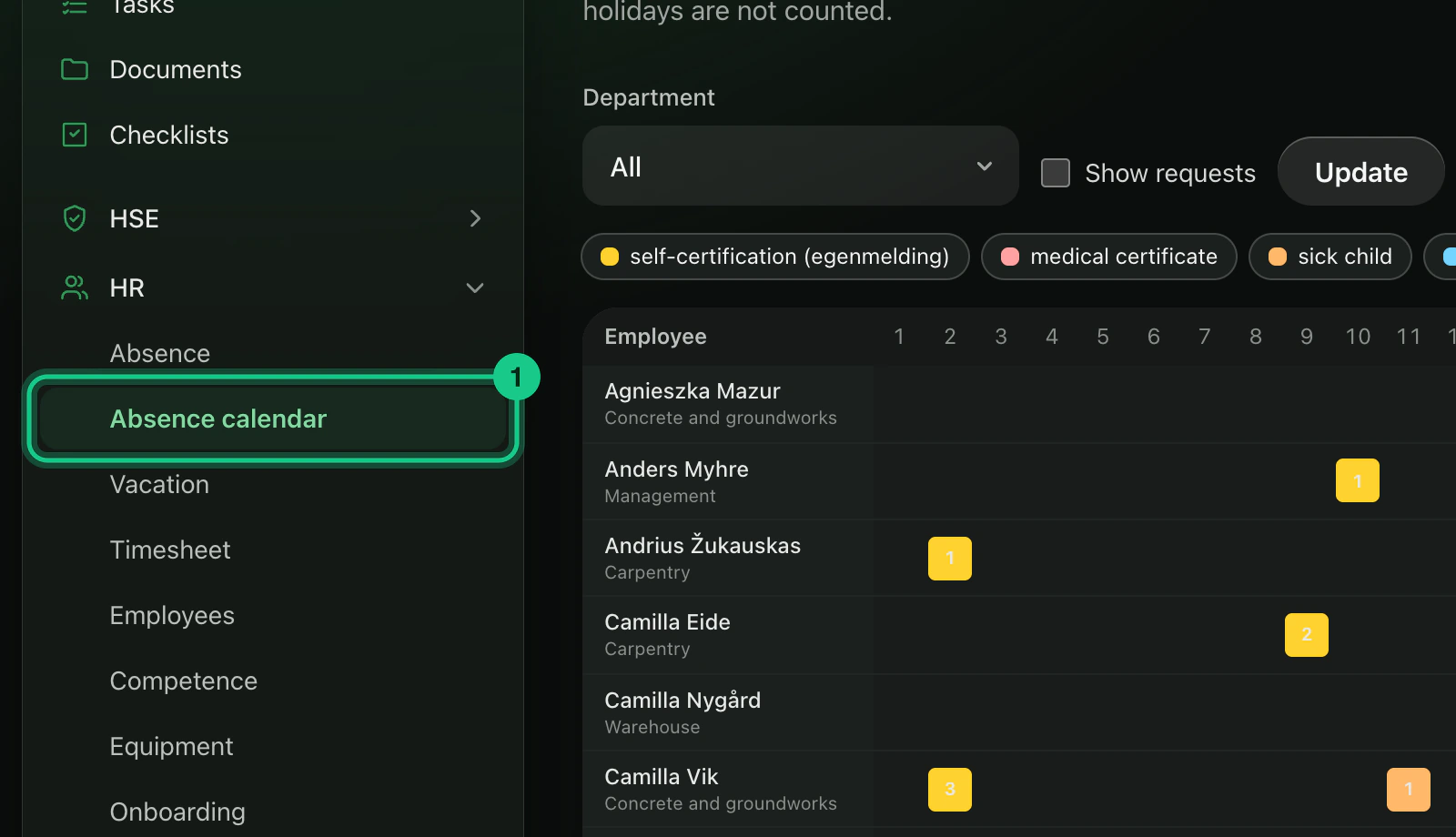


What does the calendar show?
The columns are weeks, and the rows are employees. A fully filled box means the whole week is absence. Otherwise the number of working days in the week is shown. Public holidays are not counted. Requested weeks are shown dimmed with a dashed edge.
Who sees what?
- Administrator: all types of approved absence, and requests if they tick the box.
- Everyone else: only approved holiday for colleagues in the company. Sick leave is not shown, because it is sensitive information. Requests that have not been handled are not shown either.
Common problems
- My holiday is missing. The request may not have been approved yet. See the status under HR > Absence.
- You do not see sick leave. That is correct. Only administrators see it.