
Invite all employees who do not have a login
If you have added employees with an email address but without a login, HR > Employees shows the button “Invite all” with a number. It sends an invitation to everyone at once.
- Applies to: Administrator
- Requires HR or Courses
In the portal: HR > Employees > “Invite all”
Before you start
- You must be an administrator.
- The employees must have an employee record with an email address.
How to do it
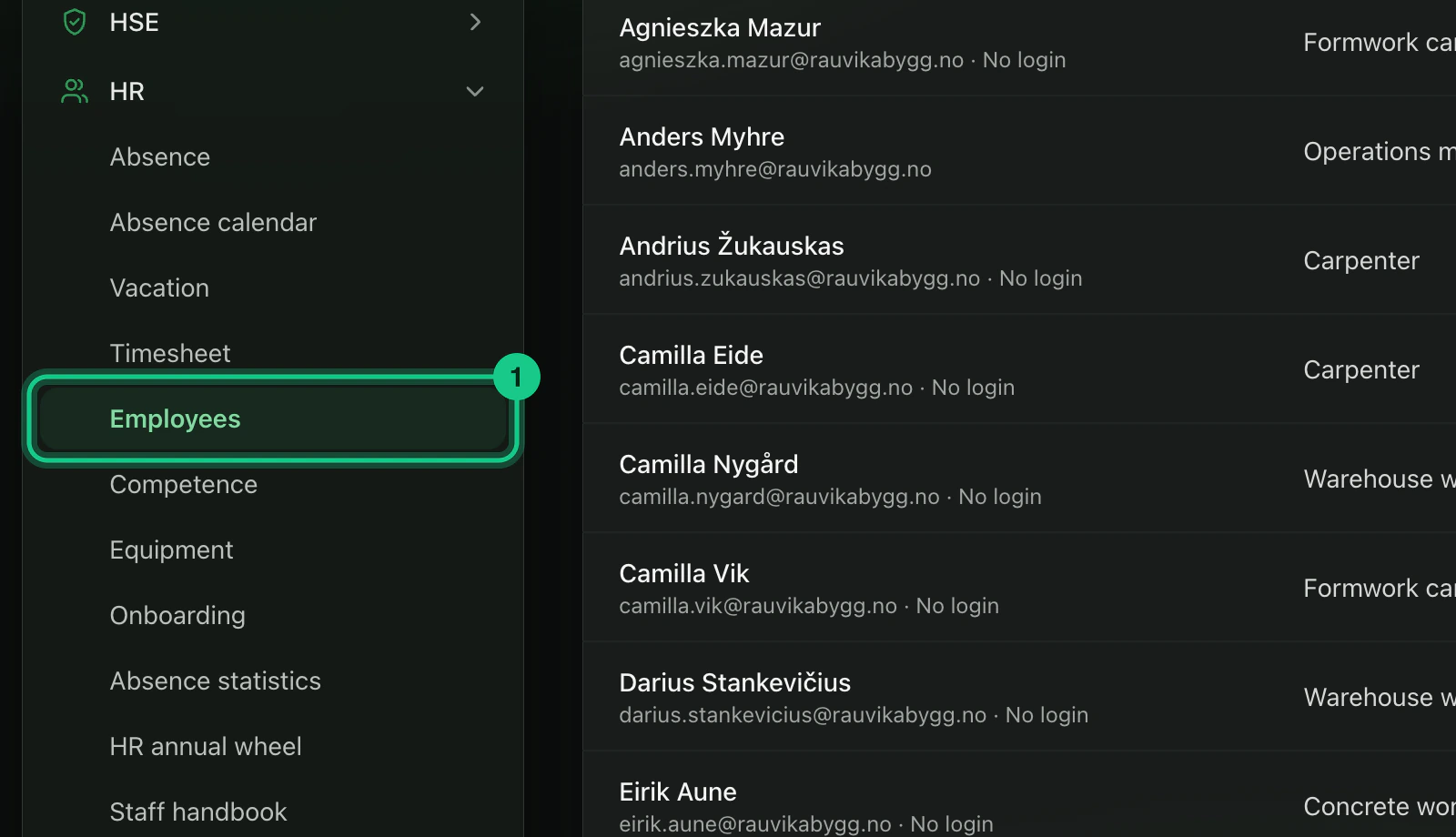
Go to HR > Employees.

If some employees have an email but no login, you see a box at the top: “(number) employees have an email address, but no login.”
Select “Invite all”, with the number after it.

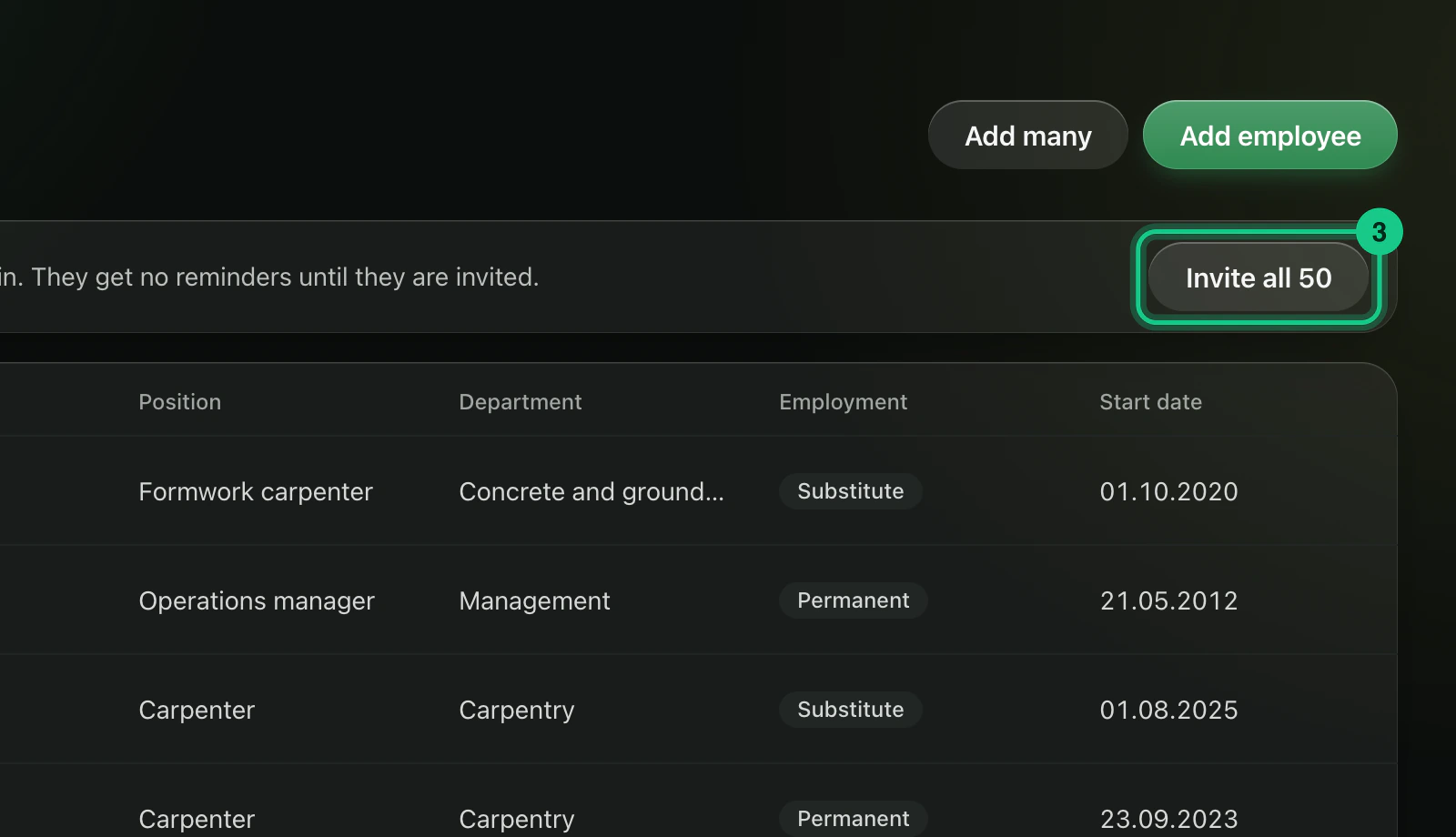
If you want to add many employees first, use “Add many” on the same page. You can paste a list of names, email addresses and job titles from Excel or Google Sheets, up to 200 at a time.
What happens next?
Each person gets a user with the role User and the job role Employee, and an email with a link to choose a password. The message “Invitations sent:” with a number after it shows how many were invited.
Want to send again?
Go to Company > Users and select “Send invitation again to (number) who have not logged in”. Old links become invalid, and the new one is valid for 72 hours.
Common problems
- “Skipped:” with a number after it. The email is invalid or already in use, or the plan has no room for more users.
- There are more than 500 employees. The portal handles 500 at a time. Select the button again for the rest.