
Add an employee and invite them to log in
You add an employee as an employee record under HR > Employees, and can send an invitation to log in with a tick box in the same form.
- Applies to: Administrator
- Requires HR or Courses
In the portal: HR > Employees > “Add employee”
Before you start
You must be an administrator. Employees is under the HR menu group, or under Courses if the company only has the course package.
How to do it
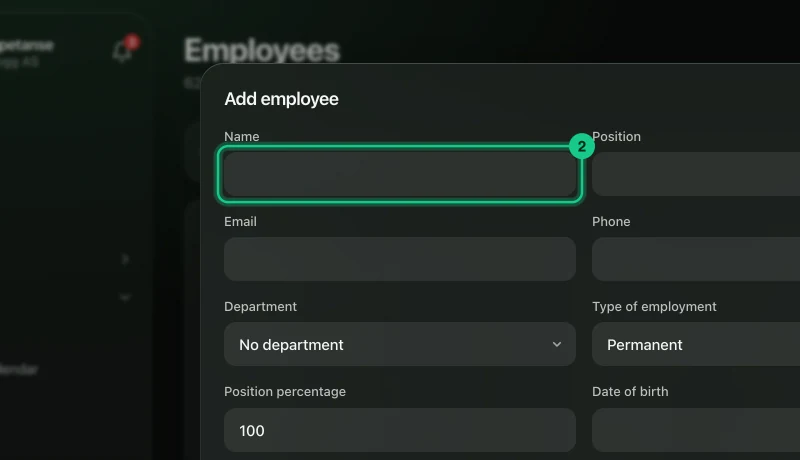
Go to HR > Employees and select “Add employee”.

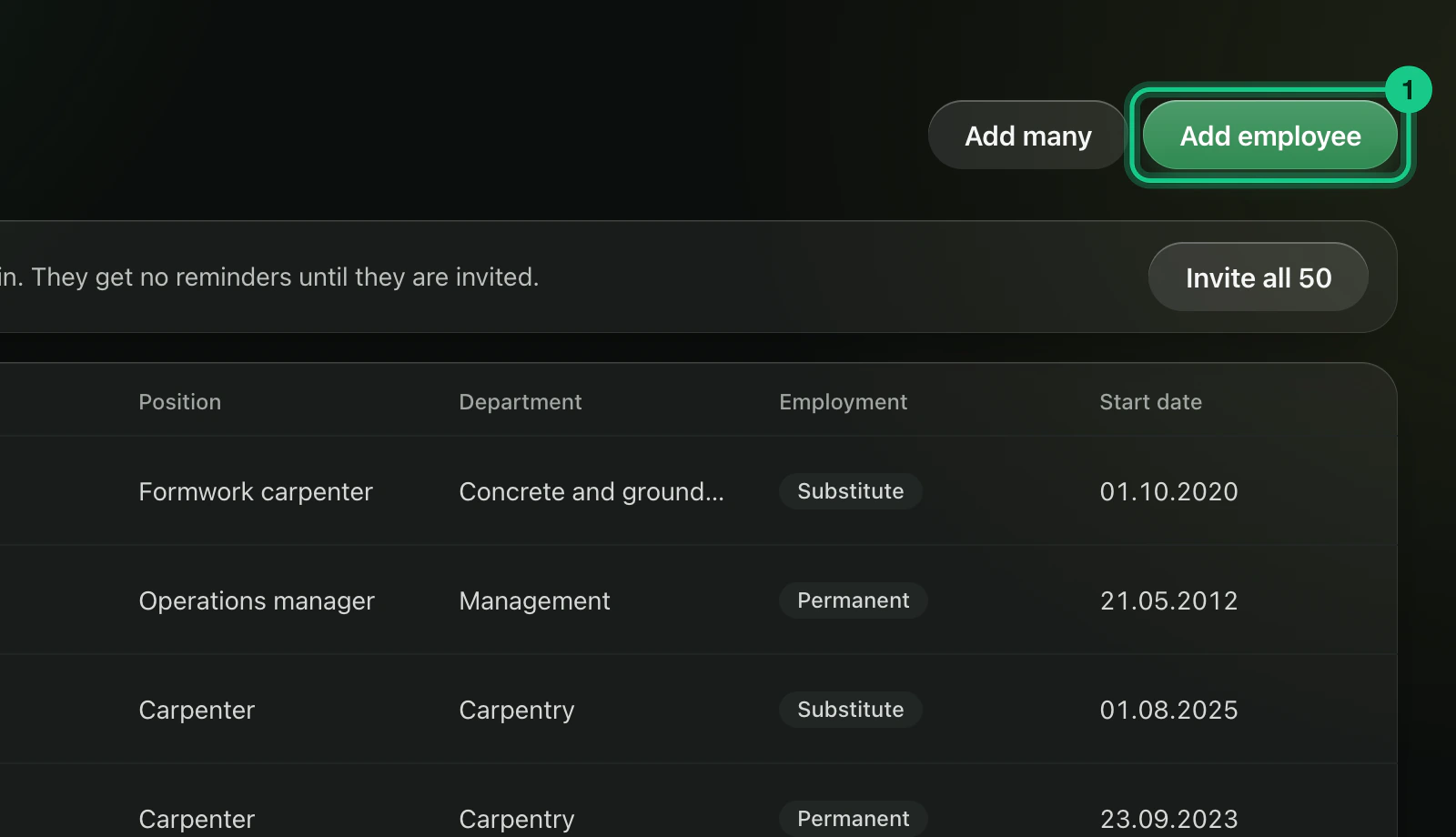
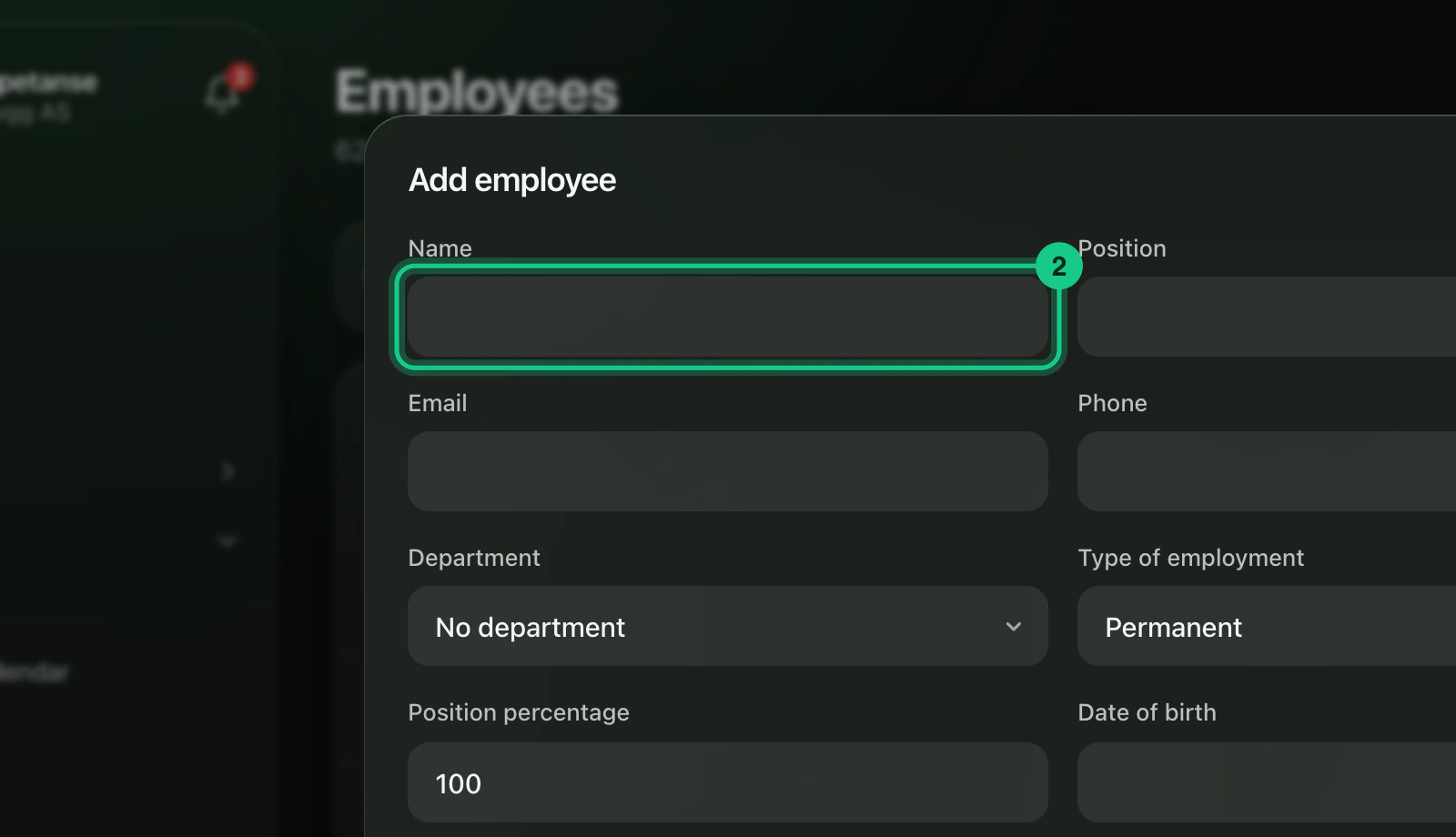
Fill in the name. The name is the only thing you must fill in. You can also add job title, email, department and start and end dates.
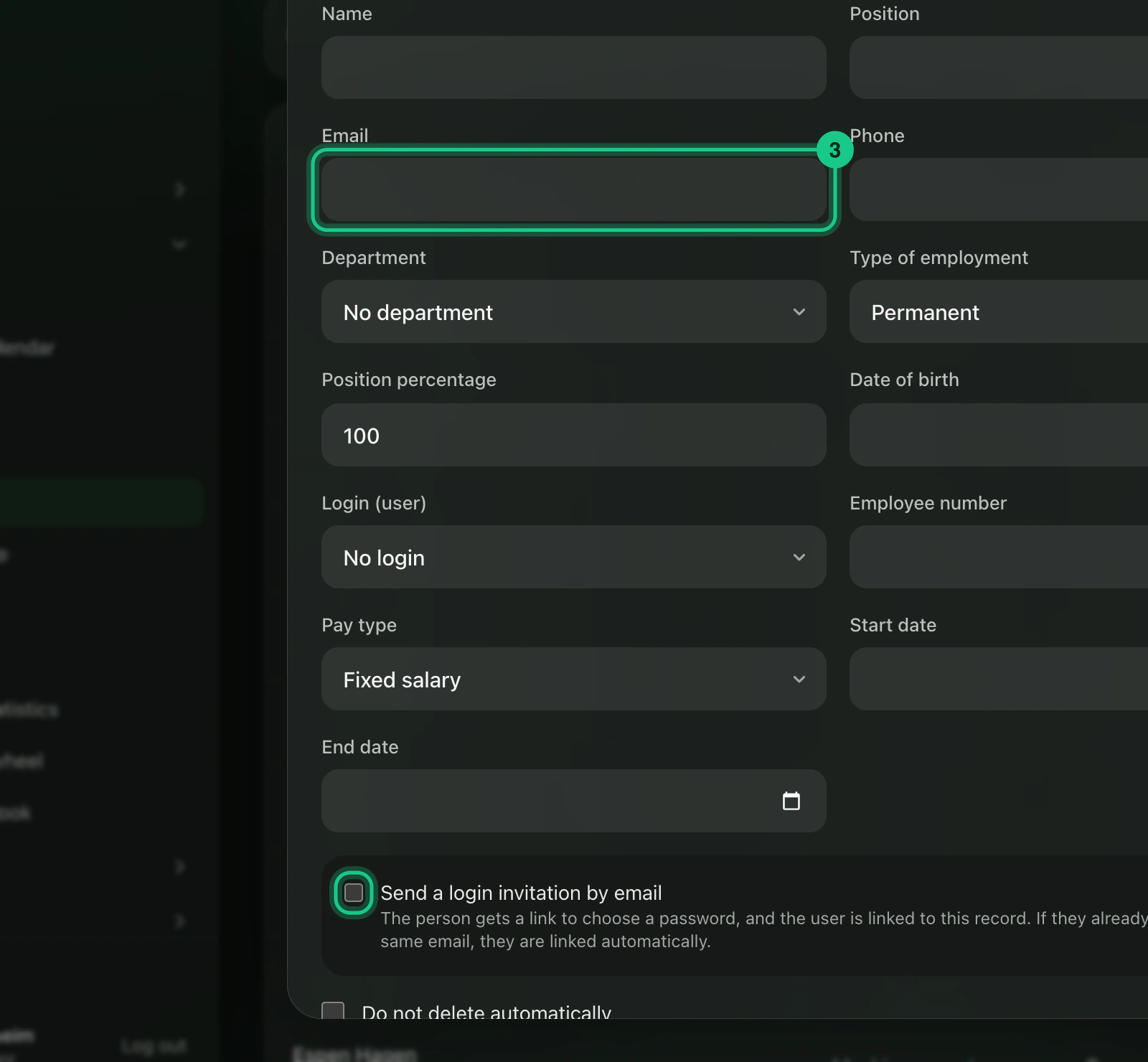
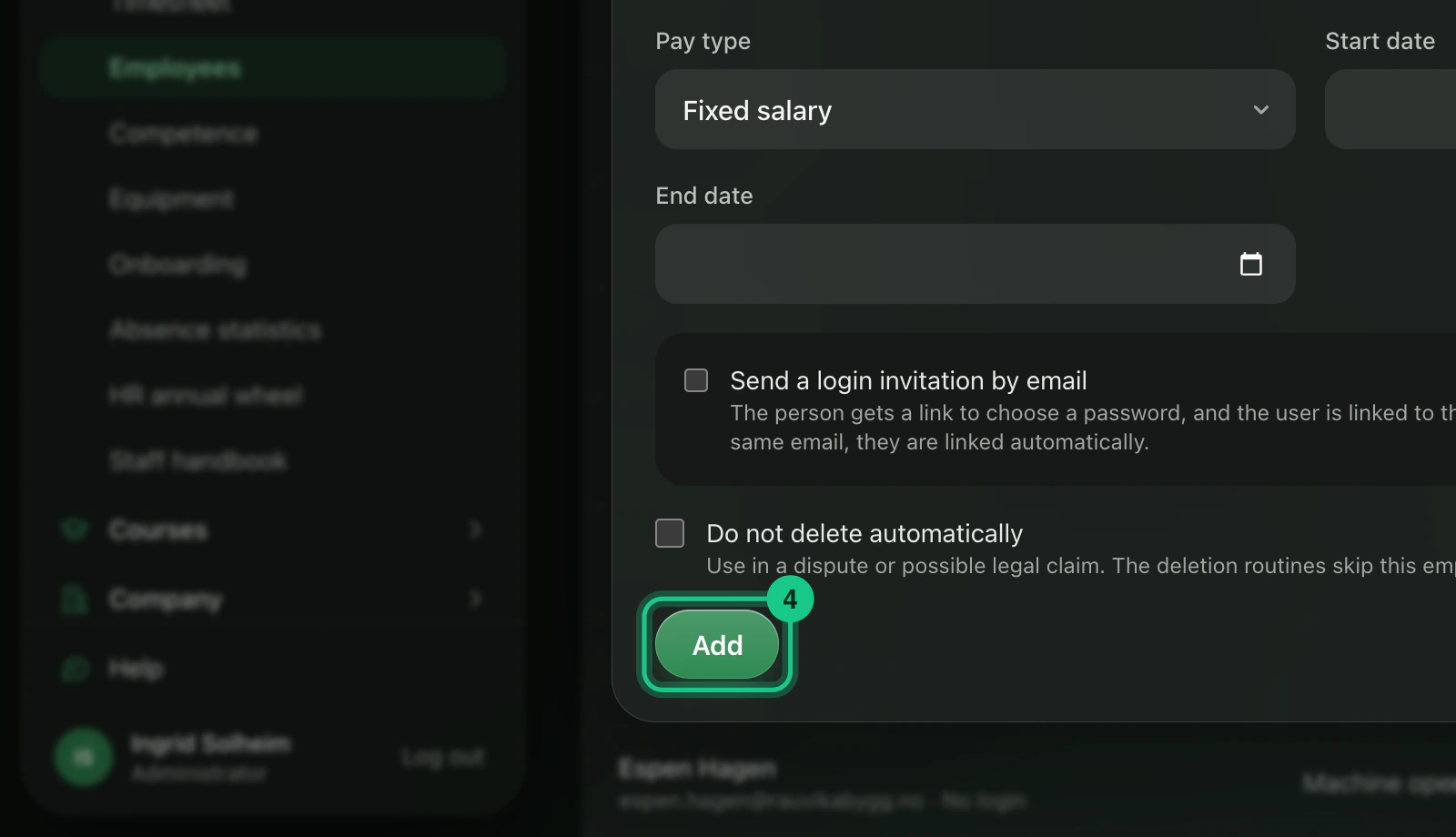
If the person is to get a login: type the email address and tick “Send a login invitation by email”.

Select “Add”.

You can also go to Company > Users, select “Invite user”, fill in name, email, role, job role and language, and select “Send invitation”.
What happens next?
The employee record is created. With an invitation, the person gets an email with a link to choose a password. The link is valid for 72 hours. The user gets the role User and the job role Employee, and is linked to the record. If the person already has a user with the same email, they are linked together.
Common problems
- “Email must be filled in to send an invitation.” Type in the email address, or remove the tick.
- “Your plan has room for (number) users.” The company has used up its user places. Contact us to extend.
- “The email address is already in use.” The address already belongs to another user.