
Roles and permissions: what can each role do?
Each user has a user type (Administrator or User) and a job role (Employee, Team leader, Managing director or Safety representative). Under Company > Roles and permissions you decide which areas each job role can edit.
- Applies to: Administrator
In the portal: Company > Roles and permissions
How to do it
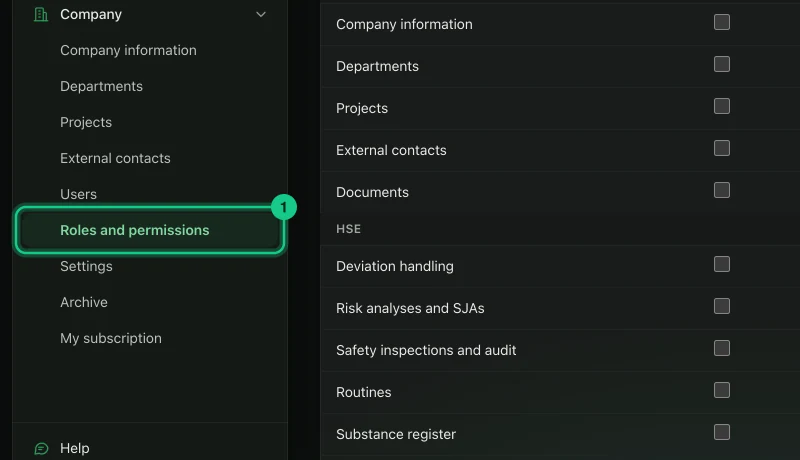
Go to Company > Roles and permissions.
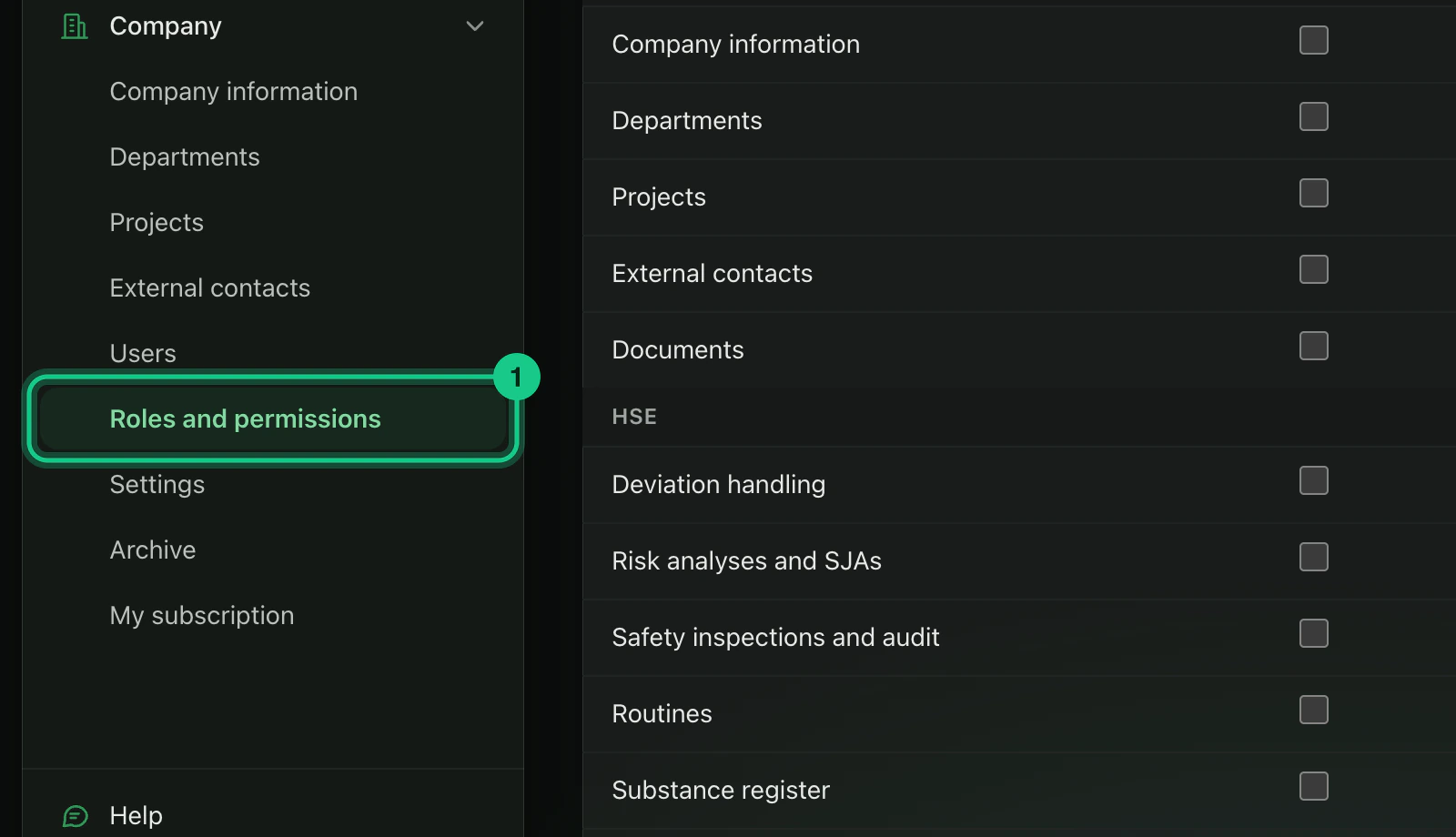
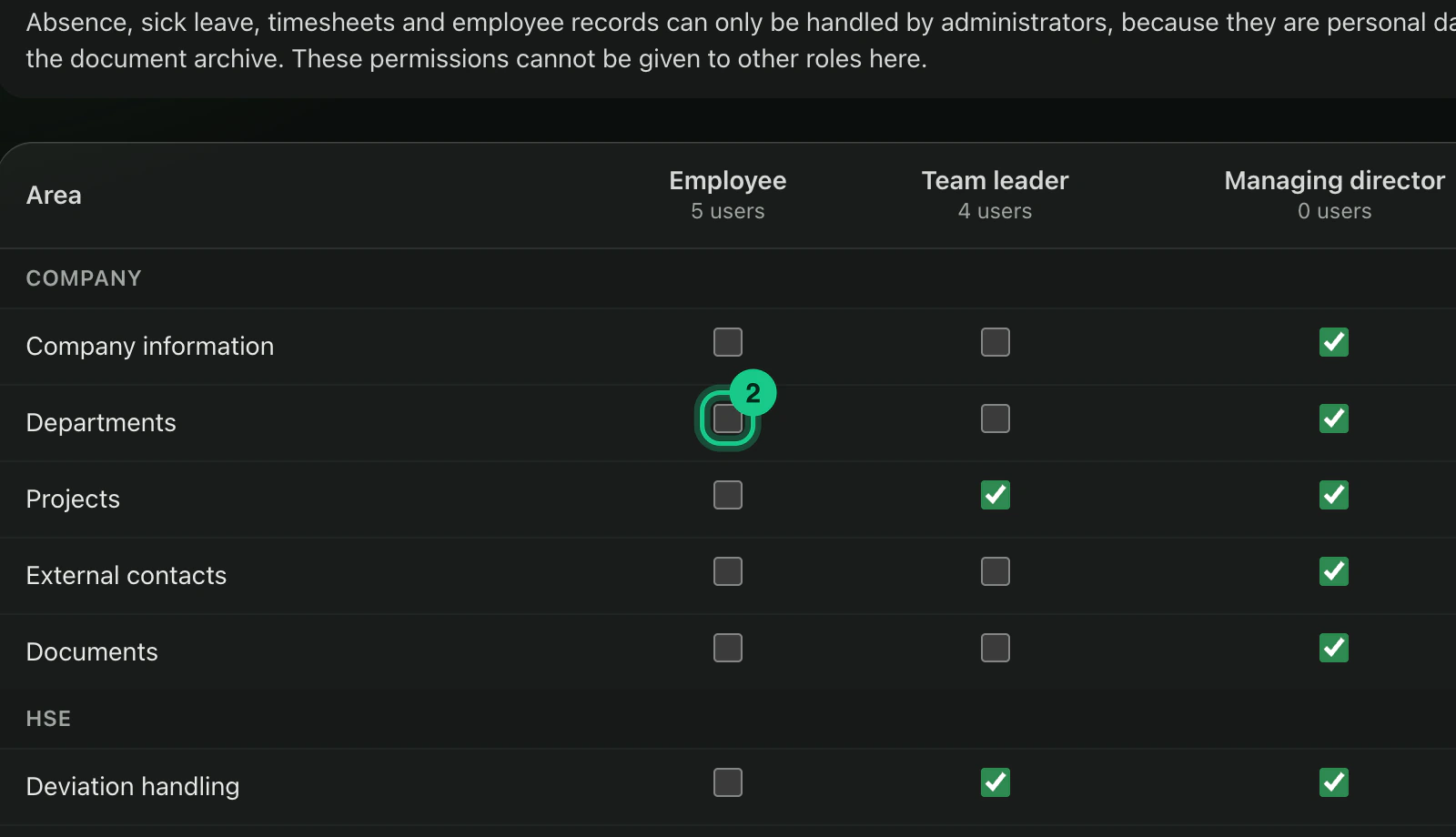
Tick where a job role is to be able to create, edit and delete. Without a tick, the role can only read.

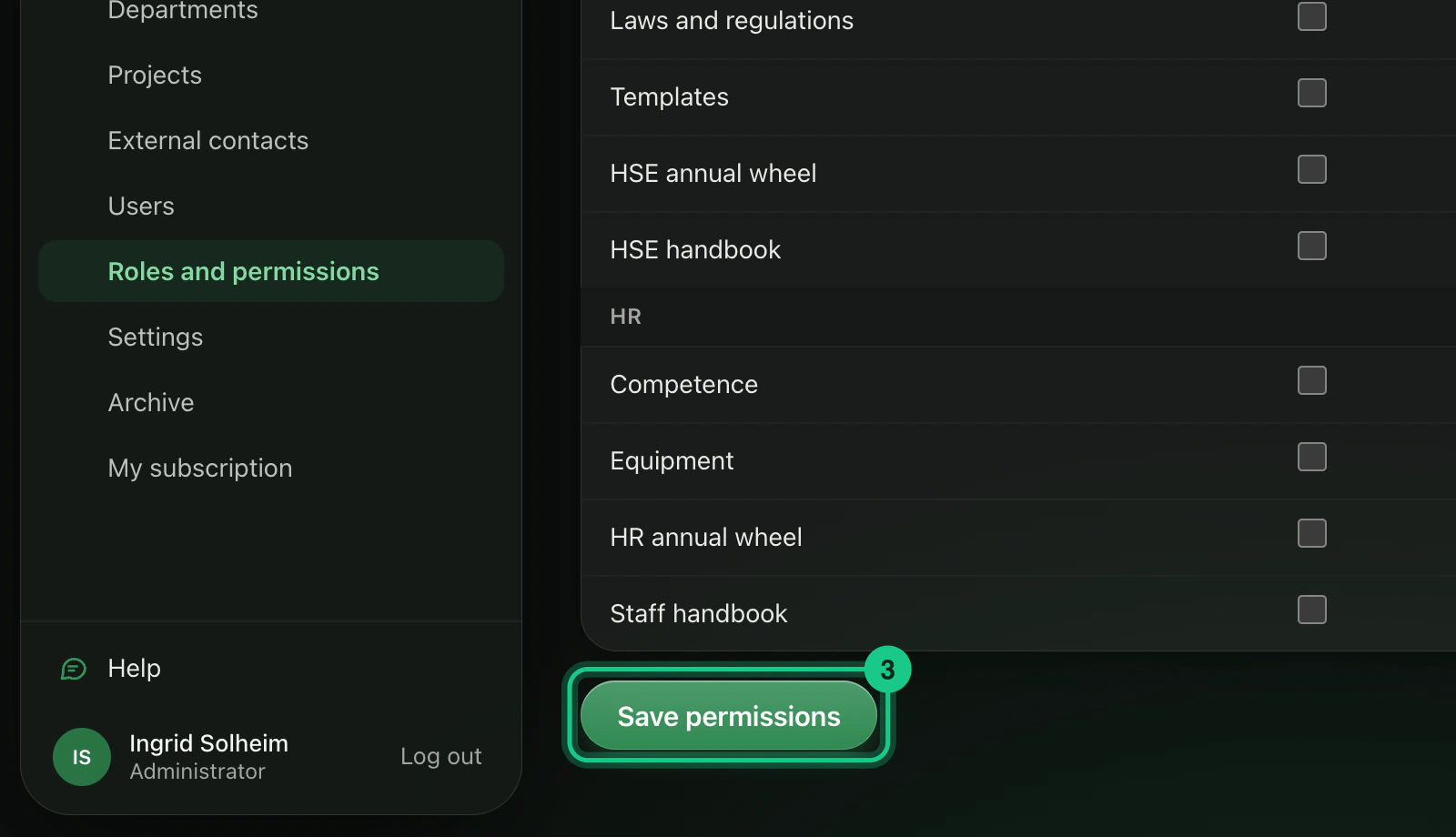
Select “Save permissions”. The change applies immediately.

You change a person’s job role under Company > Users, in the drop-down in the row. You cannot change your own role.
The default for each job role
- Employee: no edit rights.
- Team leader: projects, deviation handling, risk analyses and SJA, safety inspections and audit, competence and equipment.
- Managing director: all areas.
- Safety representative: deviation handling, risk analyses and SJA, safety inspections and audit, chemical register and the working environment committee (AMU).
Administrators can always do everything. The areas in the table depend on the plan the company has.
What you cannot change
Absence, sick leave, timesheets and employee records can only be handled by administrators, because they are personal data. The same applies to hidden folders in the document archive.
Two-factor
Users with the job role Team leader, Managing director or Safety representative must use two-factor. So must an employee you have given edit rights.
Common problems
- An area is missing from the table. Areas from modules the company does not have are not shown.