
Send a new password to an employee
You never see or set the password yourself. You send a link, and the employee chooses the password themselves.
- Applies to: Administrator
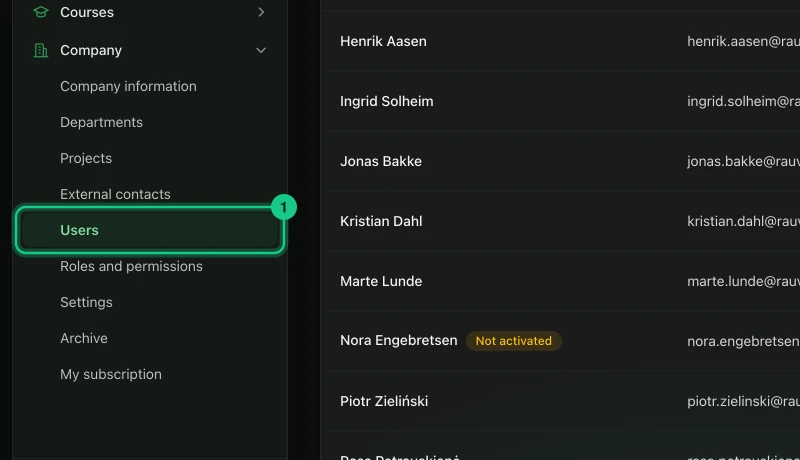
In the portal: Company > Users > “More options”
How to do it
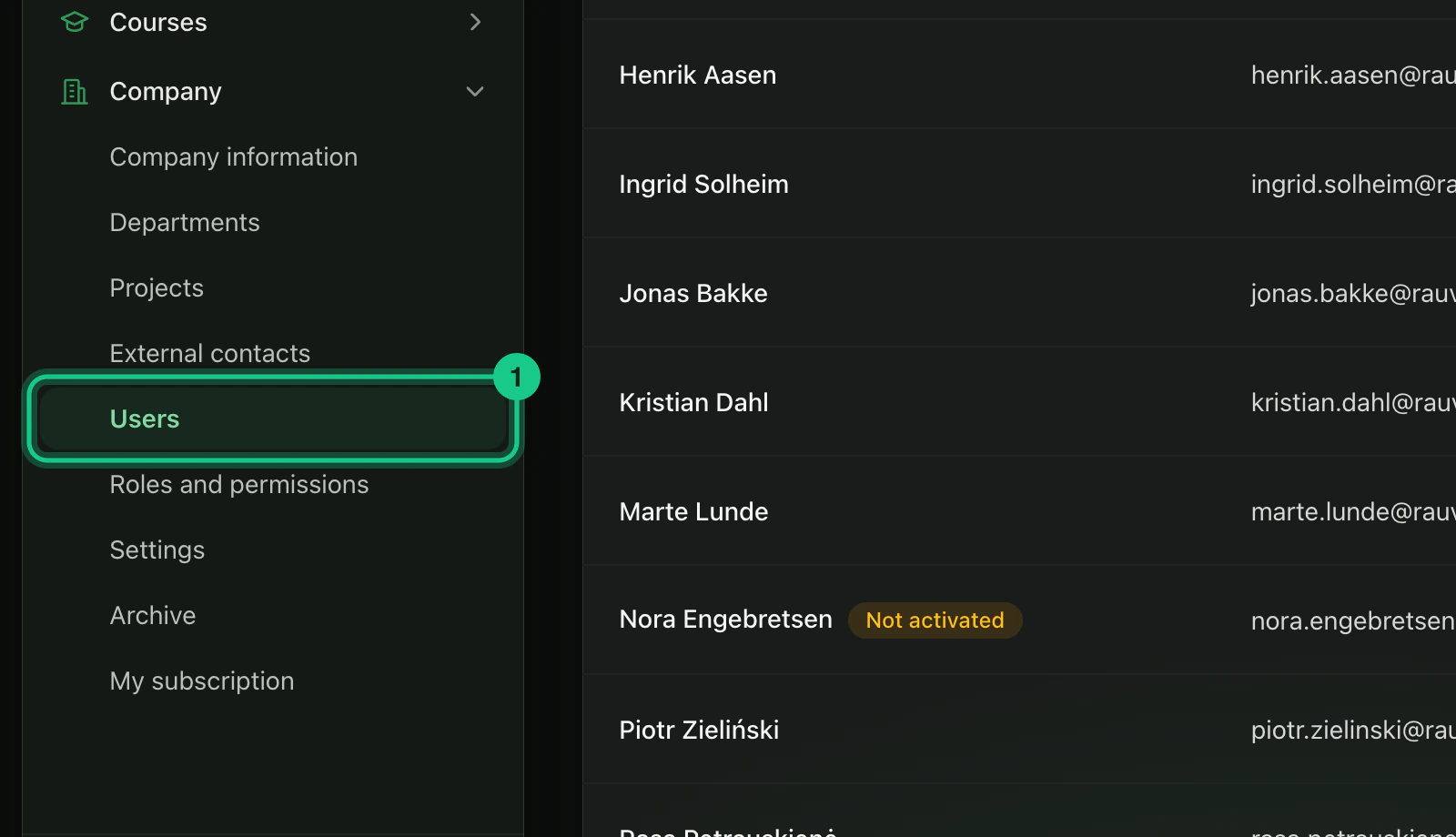
Go to Company > Users.
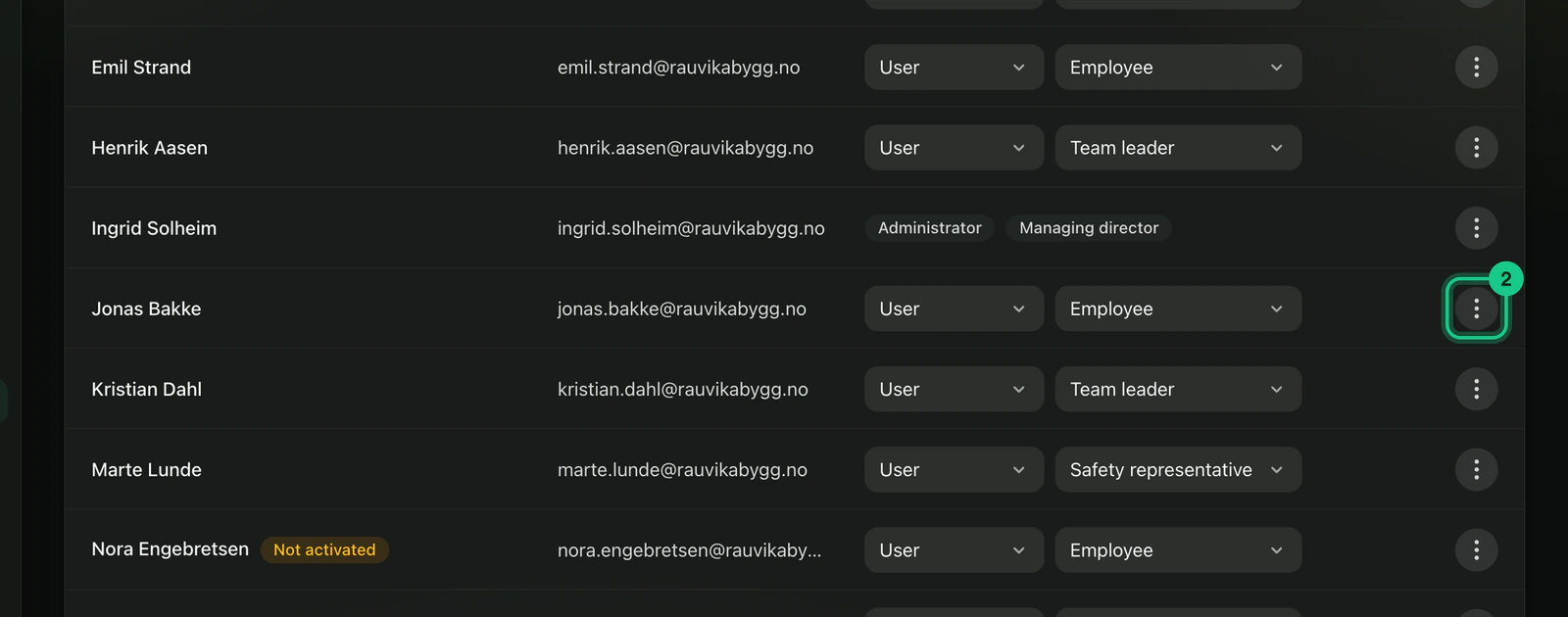
Find the person and open the “More options” menu (three dots) in the row.

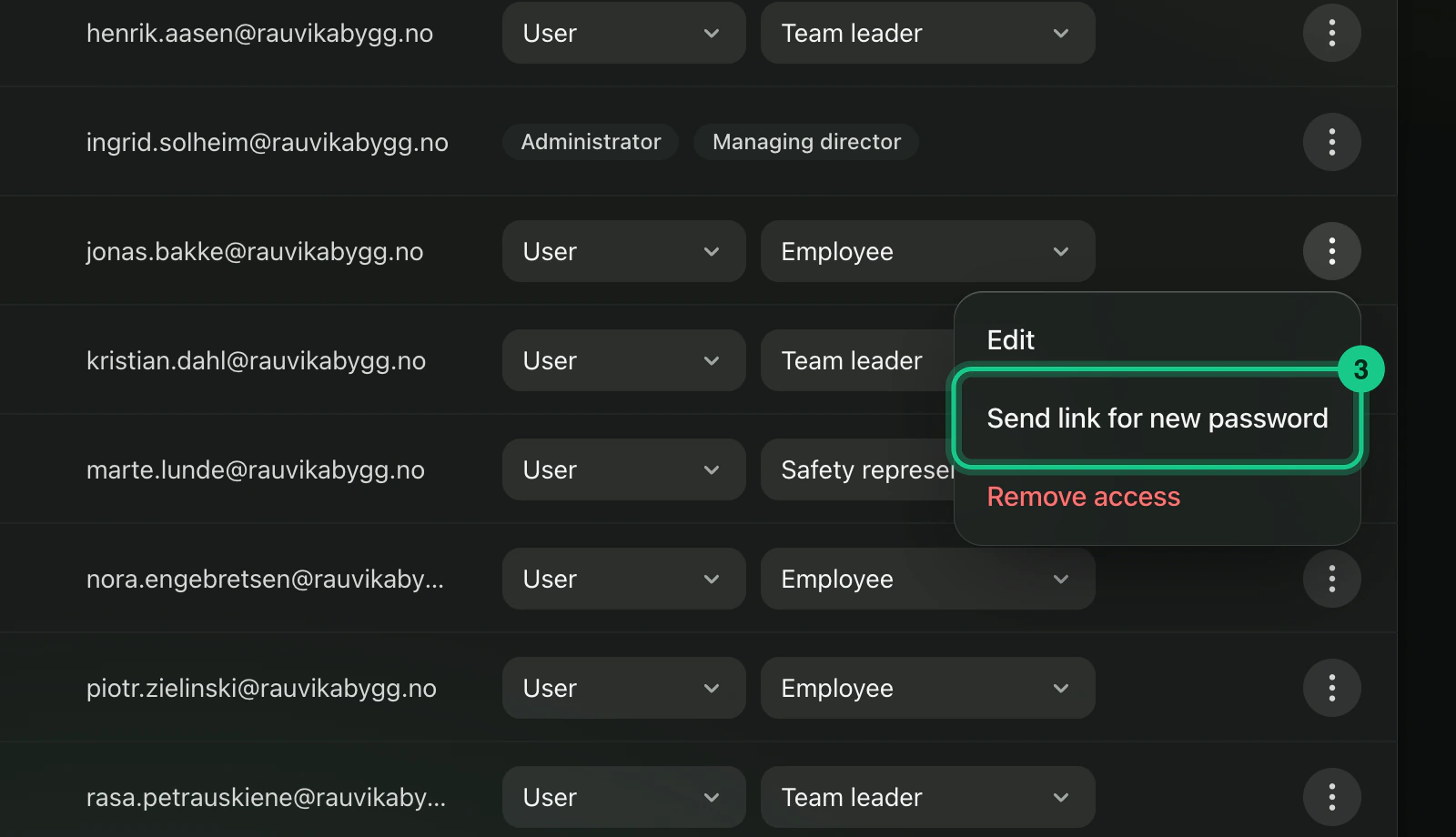
Choose “Send link for new password”. If the person has never chosen a password, the option is called “Send invitation again”.

What happens next?
The person gets an email with a link. A password link is valid for one hour, and a new invitation for 72 hours. When the person has chosen a password, they are logged out on all devices. The event is written to the access log.
Common problems
- “Several links have recently been sent to this user.” Three links can be sent in a row. Wait 15 minutes and try again.
- “The user does not have access.” Give access again first, with “Give access again” in the same menu.
- The portal does not tell you if the email cannot be sent. Ask the person to check their junk folder, or to use “Forgot password” on the login page.